# Sound

## 개요

Sound 오브젝트는 게임 내에서 오디오를 재생하거나 음향 효과를 추가할 수 있는 핵심 요소입니다. World나 Part, UI 등에 연결하여 배경음악, 효과음, 음성 등 다양한 오디오 경험을 구현할 수 있습니다. 이를 통해 게임의 몰입감을 높이고 플레이어와의 상호작용을 풍부하게 만들 수 있습니다.

## 사용 방법

### 사운드 Id 설정

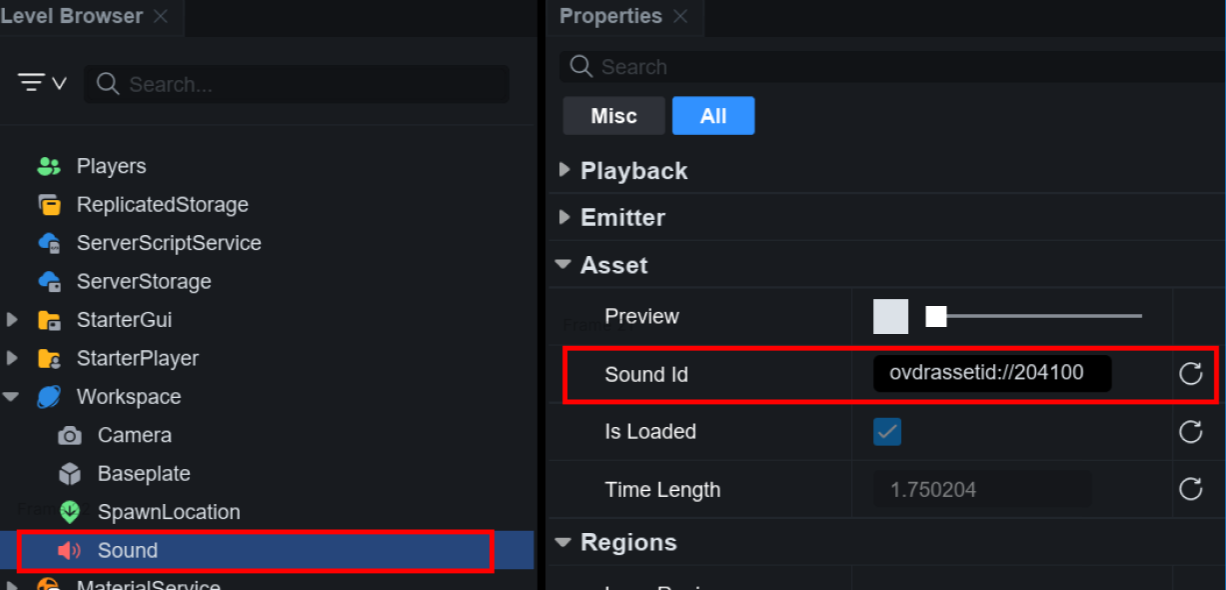
사운드를 재생하려면 사운드 오브젝트를 배치한 다음, 프로퍼티창에서 Sound Id를 설정해야 합니다.

<figure><img src="/files/O9secsNrGSEsYxxfueIx" alt=""><figcaption></figcaption></figure>

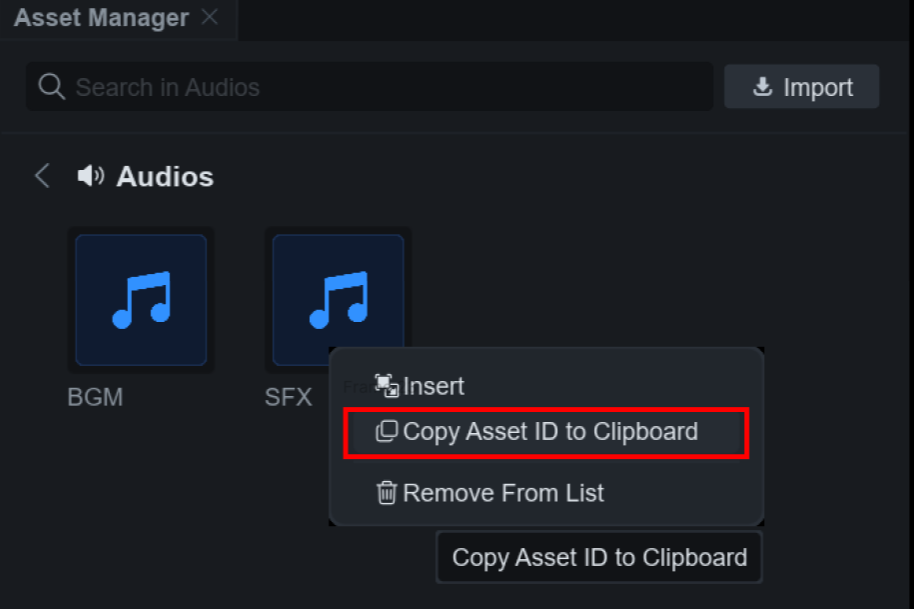
Sound Id는 Asset Manager에서 오디오 에셋을 우클릭한 다음, "Copy Asset ID to Clipboard"를 클릭해서 복사할 수 있습니다. 복사한 Asset ID는 **ovdrassetid://번호** 형식으로 설정해야 합니다.

<figure><img src="/files/fWlzYhUQJyn0j03em6Ma" alt=""><figcaption></figcaption></figure>

### 사운드 로드

Sound Id를 설정하면 사운드 에셋이 로드됩니다. 로드 상태는 IsLoaded 속성으로 확인할 수 있습니다.

#### 로드와 관련된 주요 동작

에셋이 로드되지 않은 상태:

* Time Position을 설정해도 무시됩니다
* 단, Start Time Position, Volume, Playback Region 등 다른 속성은 정상적으로 적용됩니다

에셋 로드 완료 시:

* Time Position이 자동으로 0으로 초기화됩니다
* Loaded 이벤트가 발생합니다
* IsLoaded 속성이 true가 됩니다

이미 로드가 완료된 뒤에 Loaded 이벤트를 연결하면 이벤트가 다시 호출되지 않으므로, 스크립트에서는 IsLoaded 값을 먼저 확인하는 것이 좋습니다.

### 미리 듣기

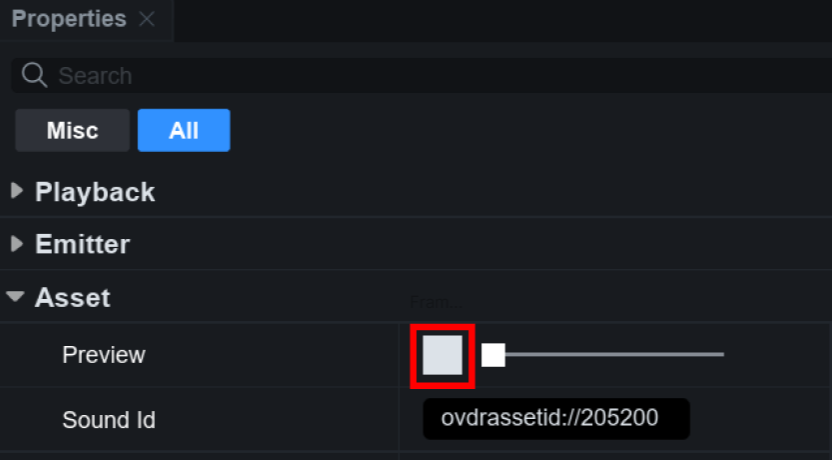
Sound Id를 설정한 경우, Preview 버튼을 클릭하여 소리를 확인할 수 있습니다.

<figure><img src="/files/FNz6Ok7b2am89WS5jZXJ" alt=""><figcaption></figcaption></figure>

### 프로퍼티 구성

<table><thead><tr><th width="247">프로퍼티</th><th>설명</th></tr></thead><tbody><tr><td>Playing</td><td>재생 여부</td></tr><tr><td>Looped</td><td>반복 여부</td></tr><tr><td>Volume</td><td>음량 (0~10, 기본값 0.5)</td></tr><tr><td>Playback Regions Enabled</td><td>PlaybackRegion과 LoopRegion 사용 여부. true로 설정하면 Start Time Position은 무시됩니다.</td></tr><tr><td>Playback Speed</td><td>재생 속도 (1.0이 정상 속도)</td></tr><tr><td>Start Time Position</td><td>Play() 호출 시 재생 시작 위치 (초 단위). Playback Regions Enabled가 true이면 무시됩니다.</td></tr><tr><td>Time Position</td><td>현재 재생 위치 (초 단위)</td></tr><tr><td>Sound Id</td><td>재생할 사운드 에셋 Id (ovdrassetid://번호 형식)</td></tr><tr><td>Loop Region</td><td>반복 재생 시 사용할 구간 (예: 5~10초). Looped = true이고 Playback Regions Enabled = true일 때 동작합니다.</td></tr><tr><td>Playback Region</td><td>재생 범위 설정 (예: 3~8초). Playback Regions Enabled = true일 때 동작합니다.</td></tr><tr><td>Play on Remove</td><td>사운드 오브젝트가 제거될 때 자동 재생 여부</td></tr><tr><td>Sound Group</td><td>사운드가 속한 사운드 그룹</td></tr></tbody></table>

### 재생 범위 제어

Sound는 PlaybackRegion과 LoopRegion을 사용하여 사운드의 특정 구간만 재생하거나 반복할 수 있습니다. 이 기능을 사용하면 긴 사운드 파일의 일부분만 사용하거나, 인트로와 루프 구간을 분리하는 등 다양한 재생 제어가 가능합니다.

PlaybackRegion은 Play()로 사운드를 시작하거나 다시 시작할 때 사용하는 범위이고, LoopRegion은 반복 재생 중 다음 루프로 넘어갈 때 사용하는 범위입니다. 따라서 루프 재생 중 Play()를 다시 호출하면 LoopRegion이 아니라 PlaybackRegion의 시작 지점부터 다시 재생됩니다.

#### 기본 원칙

재생 범위는 PlaybackRegionsEnabled 설정에 따라 다르게 동작합니다:

**PlaybackRegionsEnabled = true인 경우:**

* PlaybackRegion과 LoopRegion이 재생 범위를 제어합니다
* StartTimePosition은 완전히 무시됩니다
* 사운드의 특정 구간만 정밀하게 재생할 수 있습니다
* 사운드가 재생 중일 때 PlaybackRegion이나 LoopRegion을 변경해도 바로 적용됩니다

**PlaybackRegionsEnabled = false인 경우:**

* StartTimePosition만 재생 시작 위치에 영향을 줍니다
* PlaybackRegion과 LoopRegion은 무시됩니다
* 사운드는 항상 TimeLength까지 재생됩니다

#### 빠른 참조 테이블

| PlaybackRegionsEnabled | Looped | 처음 재생 시작점          | 루프 시작점                       | 종료점                          |
| ---------------------- | ------ | ------------------ | ---------------------------- | ---------------------------- |
| true                   | true   | PlaybackRegion.Min | LoopRegion 또는 PlaybackRegion | LoopRegion 또는 PlaybackRegion |
| true                   | false  | PlaybackRegion.Min | -                            | PlaybackRegion.Max           |
| false                  | true   | StartTimePosition  | 0                            | TimeLength                   |
| false                  | false  | StartTimePosition  | -                            | TimeLength                   |

#### PlaybackRegionsEnabled 활성화

PlaybackRegion과 LoopRegion을 사용하려면 먼저 PlaybackRegionsEnabled 속성을 true로 설정해야 합니다.

> Playback Regions Enabled가 활성화되면 Start Time Position은 무시되고 PlaybackRegion이 재생 범위를 제어합니다.

#### PlaybackRegion (재생 구간 설정)

사운드의 시작과 끝 지점을 초 단위로 설정합니다. 예를 들어 30초짜리 사운드에서 5초\~20초 구간만 재생하고 싶을 때 사용합니다.

```lua
local Sound = script.Parent

Sound.PlaybackRegionsEnabled = true
Sound.PlaybackRegion = NumberRange.new(5, 20)  
Sound:Play()
```

#### LoopRegion (반복 구간 설정)

Looped가 true일 때, 루프 시 반복할 구간을 설정합니다. 첫 재생은 PlaybackRegion으로, 반복은 LoopRegion으로 재생됩니다.

```lua
local Sound = script.Parent

Sound.PlaybackRegionsEnabled = true
Sound.Looped = true

Sound.PlaybackRegion = NumberRange.new(0, 30)

Sound.LoopRegion = NumberRange.new(10, 25)

Sound:Play()
```

**참고사항:**

* PlaybackRegion과 LoopRegion의 음수 값은 0으로 조정됩니다
* PlaybackRegion과 LoopRegion의 값이 TimeLength를 초과하면 TimeLength 기준으로 재생 범위가 제한됩니다
* Min = Max인 경우 해당 Region 설정이 무시됩니다

#### 실전 활용 예제

**배경 음악 인트로 + 루프**

```lua
local BGM = script.Parent

BGM.PlaybackRegionsEnabled = true
BGM.Looped = true

BGM.PlaybackRegion = NumberRange.new(0, 60)

BGM.LoopRegion = NumberRange.new(15, 60)

BGM:Play()
```

### 위치 기반 재생

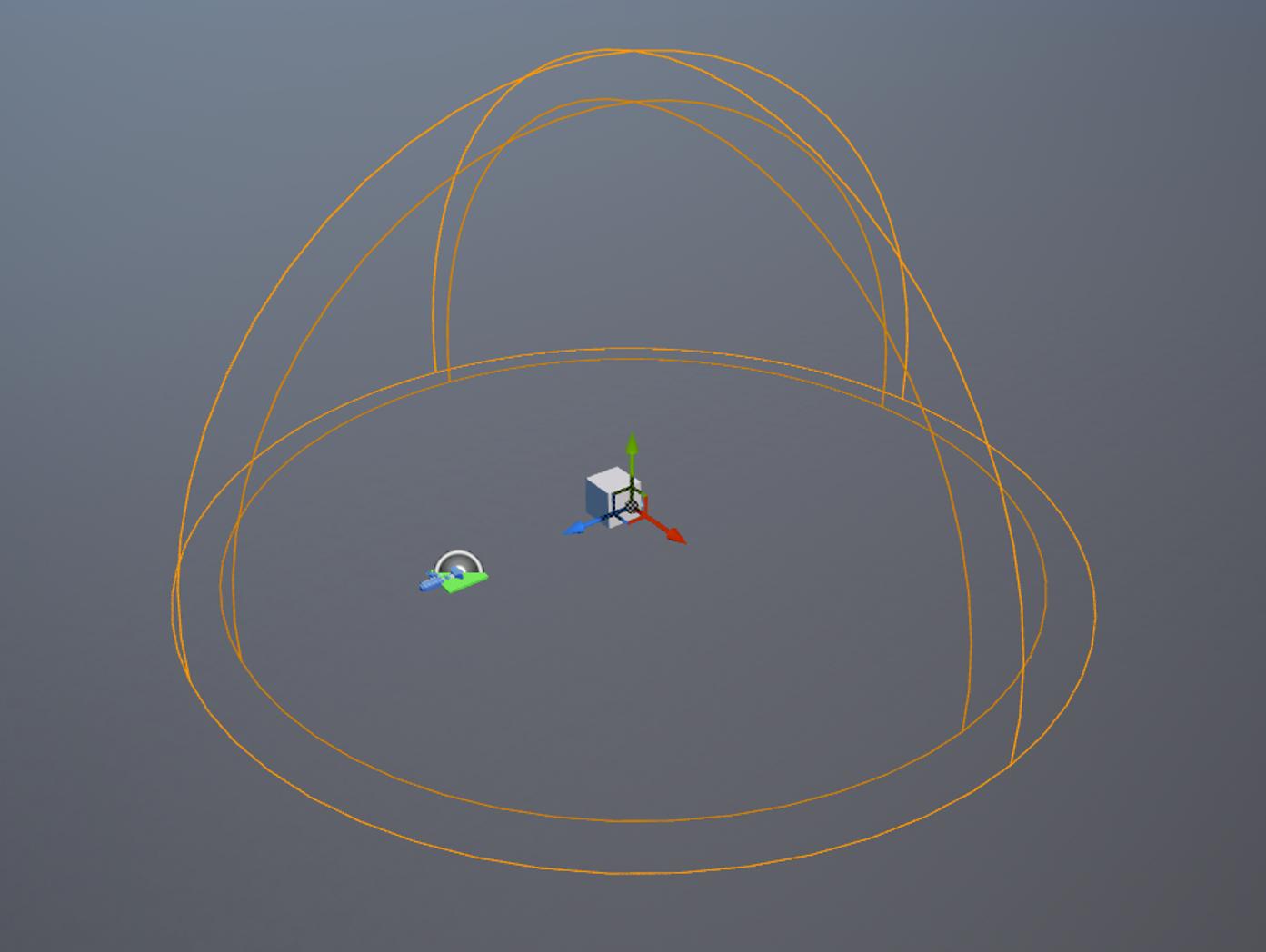
위치 기반 재생을 사용하면 소리가 거리와 위치에 따라 자연스럽게 감쇠되도록 설정할 수 있습니다. 예를 들어, 특정 장소에서 들리는 빗소리나 거리에 따라 멀어지는 자동차의 엔진음 등을 사실적으로 표현할 수 있습니다. 이러한 설정은 게임 내에서 공간감과 몰입감을 높이는 데 효과적입니다.

<figure><img src="/files/WRFAa1Hl5GQsYVxgajAt" alt=""><figcaption></figcaption></figure>

Sound를 Part, MeshPart, Attachment처럼 위치를 가진 오브젝트의 자식으로 배치하면 3D 사운드로 재생됩니다. 그 외 위치에 배치된 Sound는 위치와 관계없이 동일한 음량으로 들리는 2D 사운드로 재생됩니다.

위치 기반 재생은 Roll Off Max Distance와 Roll Off Min Distance 프로퍼티로 거리를 설정할 수 있으며, Roll Off Mode 프로퍼티로 감쇠 방식을 설정할 수 있습니다. 2D 사운드에는 Roll Off 감쇠가 적용되지 않습니다.

<table><thead><tr><th width="247">프로퍼티</th><th>설명</th></tr></thead><tbody><tr><td>Roll Off Max Distance</td><td>소리가 들리는 최대 거리</td></tr><tr><td>Roll Off Min Distance</td><td>소리가 들리기 시작하는 최소 거리</td></tr><tr><td>Roll Off Mode</td><td><p>소리가 거리에 따라 감쇠되는 방식</p><ul><li>Inverse : 거리에 반비례하여 소리가 감쇠</li><li>Linear : 선형적으로 감쇠</li><li>Linear Square : 거리 제곱에 비례하여 감쇠</li><li>Inverse Tapered : 가까운 거리에서의 감쇠를 완화</li></ul></td></tr></tbody></table>

Roll Off Mode의 각 타입은 다음과 같이 활용할 수 있습니다.

* Inverse : 폭발음 (플레이어가 멀리 있을수록 소리가 점차 약해짐)
* Linear : 라디오에서 나오는 배경 음악 (거리에 따라 일정하게 소리가 감소)
* Linear Square : 총기 발사음 (근거리에서 강렬, 원거리에서 급격히 소리가 감소)
* Inverse Tapered : 바람 소리 (가까운 거리에서 서서히 소리가 감소)

## 활용 예시

### 게임 배경음

```lua
local Workspace = game:GetService("Workspace")
local GameBGM = Workspace.GameBGM
​
local function PlayGameBGM(isPlay)
    GameBGM.Playing = isPlay
end
PlayGameBGM(true)
```

### KillPart 충돌 효과음

```lua
local Workspace = game:GetService("Workspace")
local Part = Workspace.Part

local function OnTouched(otherPart)
    local partParent = otherPart.Parent
    local humanoid = partParent:FindFirstChild("Humanoid")

    if humanoid then
        humanoid:TakeDamage(100)        
        
        local killSFX = Instance.new("Sound")
        killSFX.SoundId = "ovdrassetid://1234"		
        killSFX.Volume = 1
        killSFX.Parent = Part
        killSFX.Playing = true
    end
end
Part.Touched:Connect(OnTouched)
```

### 버튼 효과음

```lua
local Workspace = game:GetService("Workspace")
local ScreenGui = script.Parent
local ImageButton = ScreenGui.ImageButton

local function OnActivated()
    print("Activated!")
    
    local buttonSFX = Instance.new("Sound")
    buttonSFX.SoundId = "ovdrassetid://1234"	
    buttonSFX.Volume = 1
    buttonSFX.Parent = Workspace
    buttonSFX.Playing = true
end
ImageButton.Activated:Connect(OnActivated)
```

## 고급 활용

### 사운드 그룹

SoundGroup은 여러 개의 사운드를 일괄적으로 제어할 수 있는 객체입니다.

Sound를 특정 그룹에 연결할 때는 SoundGroup 속성을 직접 지정해야 하며, 단순히 SoundGroup의 자식 객체로 배치하는 것만으로는 연결되지 않습니다.

SoundGroup의 Volume은 연결된 사운드에 즉시 적용되며, Volume을 0으로 설정하면 해당 그룹의 사운드가 출력되지 않습니다.

```lua
local Workspace = game:GetService("Workspace")
local SoundGroup = script.Parent
local Sound = Workspace.Sound

SoundGroup.Volume = 0.2
Sound.SoundGroup = SoundGroup
```


---

# Agent Instructions: Querying This Documentation

If you need additional information that is not directly available in this page, you can query the documentation dynamically by asking a question.

Perform an HTTP GET request on the current page URL with the `ask` query parameter:

```
GET https://docs.overdare.com/korean/manual/studio-manual/object/sound.md?ask=<question>
```

The question should be specific, self-contained, and written in natural language.
The response will contain a direct answer to the question and relevant excerpts and sources from the documentation.

Use this mechanism when the answer is not explicitly present in the current page, you need clarification or additional context, or you want to retrieve related documentation sections.