Sound

Overview

The Sound object is a core element for playing audio and adding sound effects in your game. You can attach it to a World, Part, UI, and more to implement various audio experiences such as background music, sound effects, and voice. This helps increase immersion and enrich interaction with the player.

How to Use

Setting Sound Id

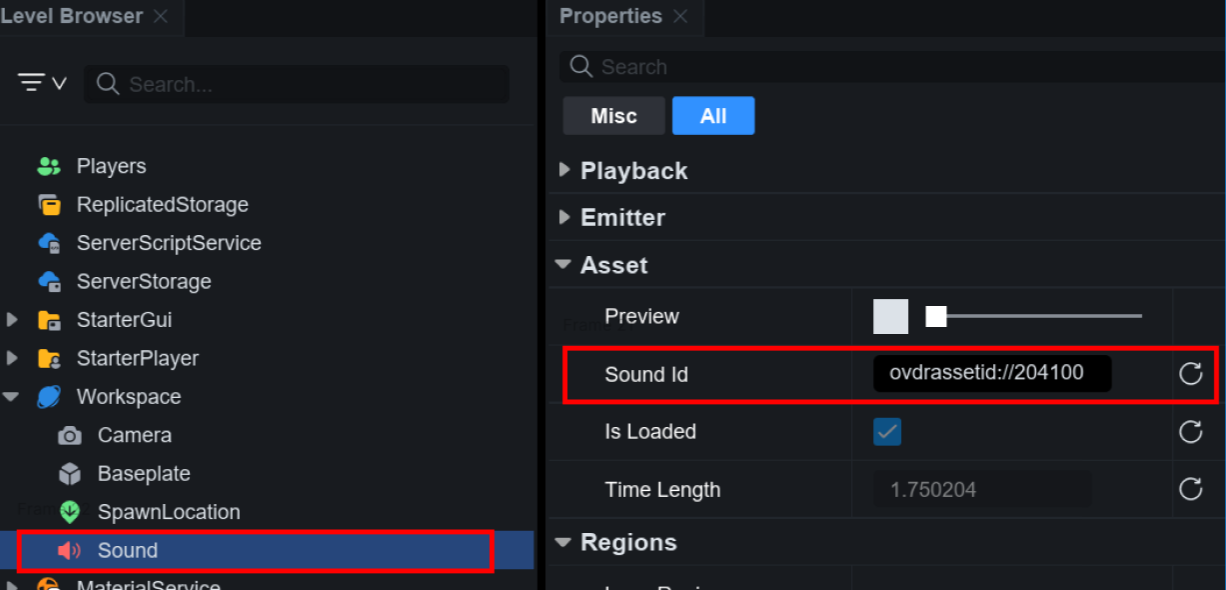
To play a sound, place a Sound object and set the SoundId in the properties window.

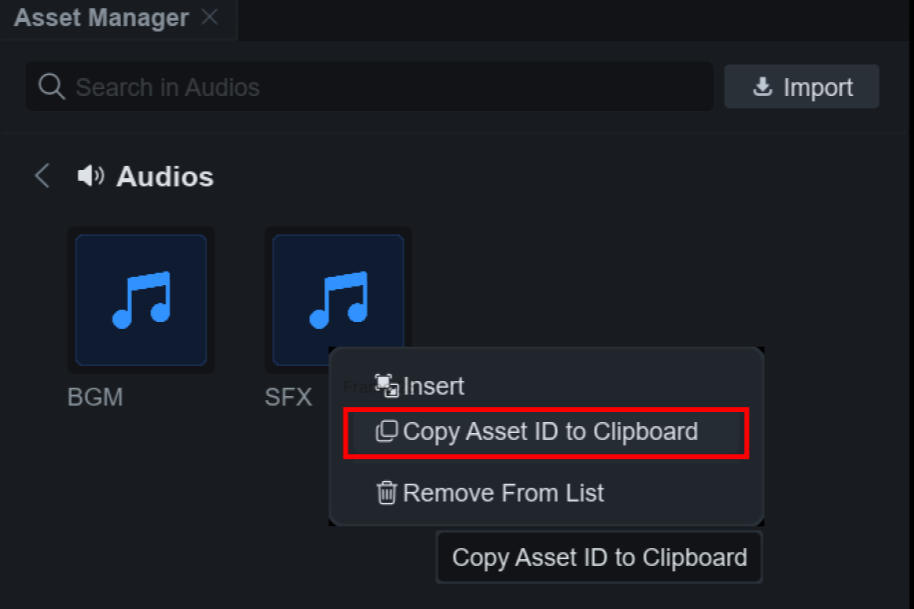
You can copy the Sound Id by right-clicking an audio asset in the Asset Manager and clicking Copy Asset ID to Clipboard. Set the copied Asset ID in the format ovdrassetid://number.

Sound Loading

When you set the Sound Id, the sound asset is loaded on the server. You can check the load state with the IsLoaded property.

When the asset is not loaded:

  • Time Position settings are ignored

  • Other properties such as Start Time Position, Volume, and Playback Region are applied normally

When the asset has finished loading:

  • Time Position is automatically reset to 0

  • The Loaded event fires

  • The IsLoaded property becomes true

Preview

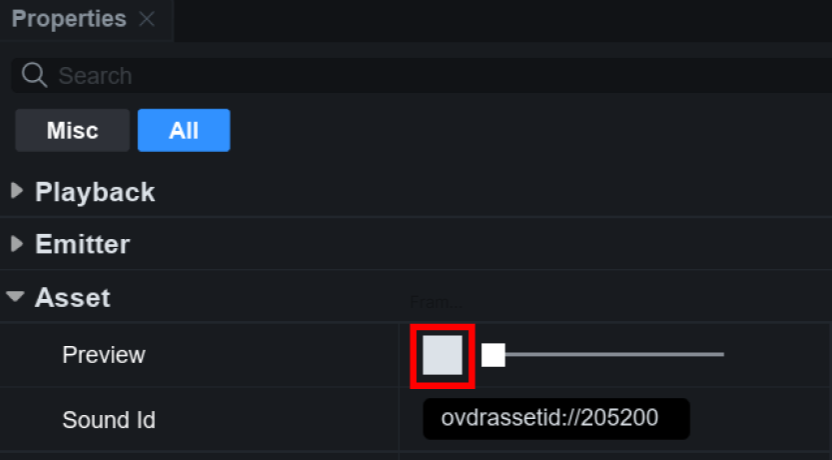
When the Sound Id is set, you can click the Preview button to hear the sound.

Property Summary

Property
Description

Playing

Whether the sound is playing

Looped

Whether the sound loops

Volume

Volume (0–10, default 0.5)

Playback Regions Enabled

Whether to use PlaybackRegion and LoopRegion. When set to true, Start Time Position is ignored.

Playback Speed

Playback speed (1.0 is normal)

Start Time Position

Position in seconds where playback starts when Play() is called. Ignored when Playback Regions Enabled is true.

Time Position

Current playback position in seconds

Sound Id

Asset Id of the sound to play (format: ovdrassetid://number)

Loop Region

Section to use for looped playback (e.g. 5–10 seconds). Works when Looped = true and Playback Regions Enabled = true.

Playback Region

Playback range (e.g. 3–8 seconds). Works when Playback Regions Enabled = true.

Play on Remove

Whether to play automatically when the Sound object is removed

Sound Group

The sound group this sound belongs to

Playback Range Control

Sound can use PlaybackRegion and LoopRegion to play or loop only a specific part of the sound. This lets you use only a portion of a long file or separate an intro from the loop section.

Basic rules

Playback range behaves differently depending on the PlaybackRegionsEnabled setting:

When PlaybackRegionsEnabled = true:

  • PlaybackRegion and LoopRegion control the playback range

  • StartTimePosition is ignored entirely

  • You can precisely play only a specific part of the sound

When PlaybackRegionsEnabled = false:

  • Only StartTimePosition affects where playback starts

  • PlaybackRegion and LoopRegion are ignored

  • The sound always plays to TimeLength

Quick reference table

PlaybackRegionsEnabled
Looped
First play start
Loop start
End

true

true

PlaybackRegion.Min

LoopRegion or PlaybackRegion

LoopRegion or PlaybackRegion

true

false

PlaybackRegion.Min

-

PlaybackRegion.Max

false

true

StartTimePosition

0

TimeLength

false

false

StartTimePosition

-

TimeLength

Enabling PlaybackRegionsEnabled

To use PlaybackRegion and LoopRegion, set the PlaybackRegionsEnabled property to true first.

When Playback Regions Enabled is on, Start Time Position is ignored and PlaybackRegion controls the playback range.

PlaybackRegion (setting the playback segment)

Set the start and end of the sound in seconds. For example, use it to play only the 5–20 second part of a 30-second sound.

LoopRegion (setting the loop segment)

When Looped is true, this sets the segment to repeat on each loop. The first play uses PlaybackRegion; subsequent loops use LoopRegion.

Notes:

  • All negative values are clamped to 0

  • Values beyond TimeLength are clamped to TimeLength

  • When Min = Max, that Region setting is ignored

Practical example

Background music intro + loop

Position-Based Playback

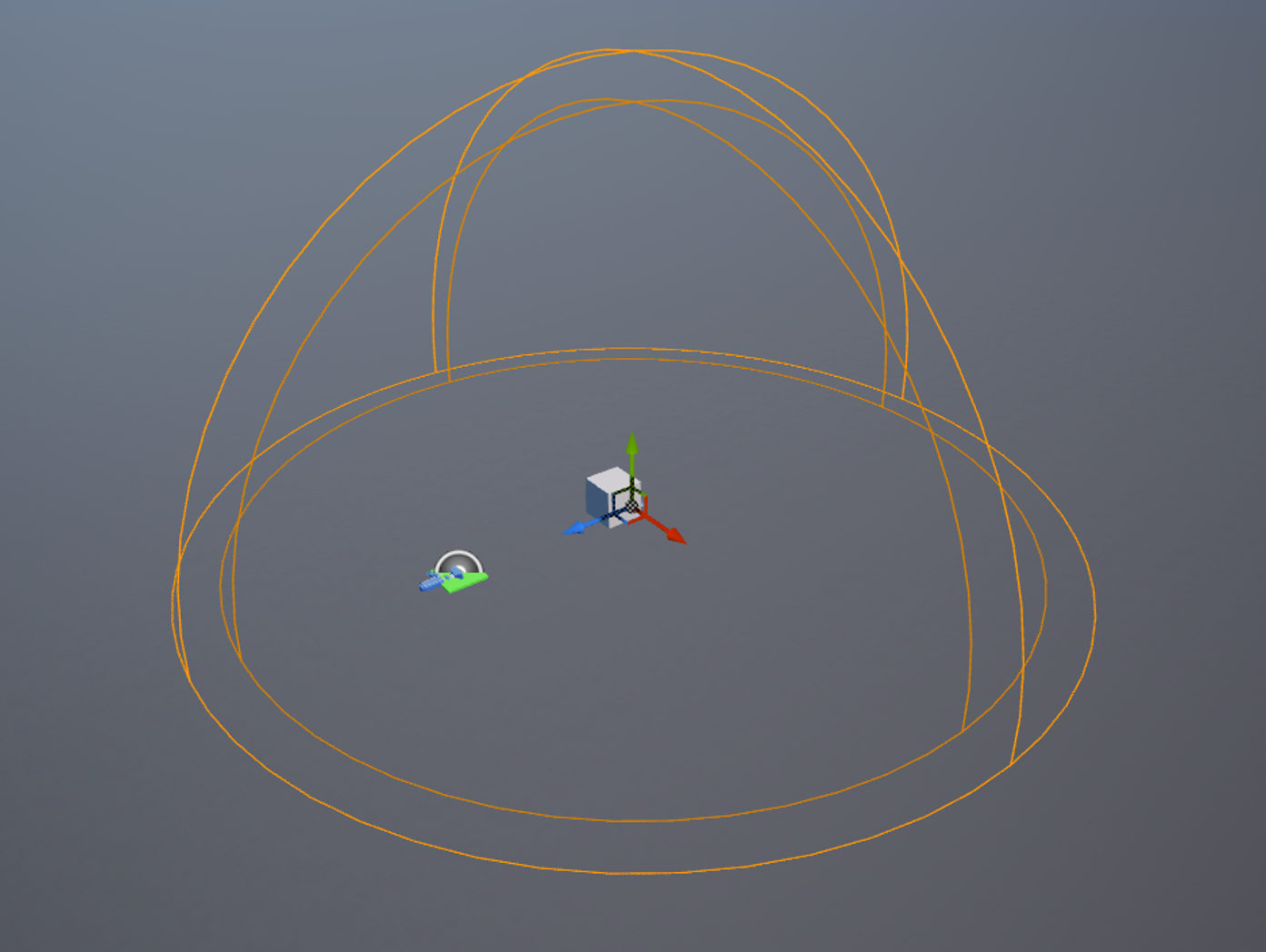
Position-based playback lets you make sound attenuate naturally with distance and position. For example, you can represent rain heard in a specific area or engine noise fading as a car moves away. These settings are effective for improving spatial awareness and immersion in the game.

You can set distance with the Roll Off Max Distance and Roll Off Min Distance properties, and set attenuation with the Roll Off Mode property.

Property
Description

Roll Off Max Distance

Maximum distance at which the sound can be heard

Roll Off Min Distance

Minimum distance at which the sound is heard at full volume

Roll Off Mode

How the sound attenuates with distance

  • Inverse: Sound attenuates inversely with distance

  • Linear: Attenuates linearly

  • Linear Square: Attenuates with the square of distance

  • Inverse Tapered: Softer attenuation at close range

Each Roll Off Mode type can be used as follows:

  • Inverse: Explosion sounds (sound gets gradually quieter as the player moves away)

  • Linear: Background music from a radio (sound decreases evenly with distance)

  • Linear Square: Gunfire (loud at close range, drops off quickly at distance)

  • Inverse Tapered: Wind (gradual decrease at close range)

Usage Examples

Game background music

KillPart collision sound effect

Button sound effect

Advanced Usage

Sound groups

SoundGroup is an object that lets you control multiple sounds together.

To attach a Sound to a specific group, you must set the SoundGroup property directly. Simply parenting the Sound under a SoundGroup in the hierarchy does not link it to that group.

Last updated