# World Publish

## Overview <a href="#overview" id="overview"></a>

Publishing a game created in OVERDARE Studio allows other users to access and play it. You can also set the game to private to conduct private tests with your team or individually.

Once your game is complete, share your creativity and passion with the world, creating a unique experience for players globally!

## How to Use <a href="#how-to-use" id="how-to-use"></a>

### 1. Publishing a World <a href="#publishing-a-world" id="publishing-a-world"></a>

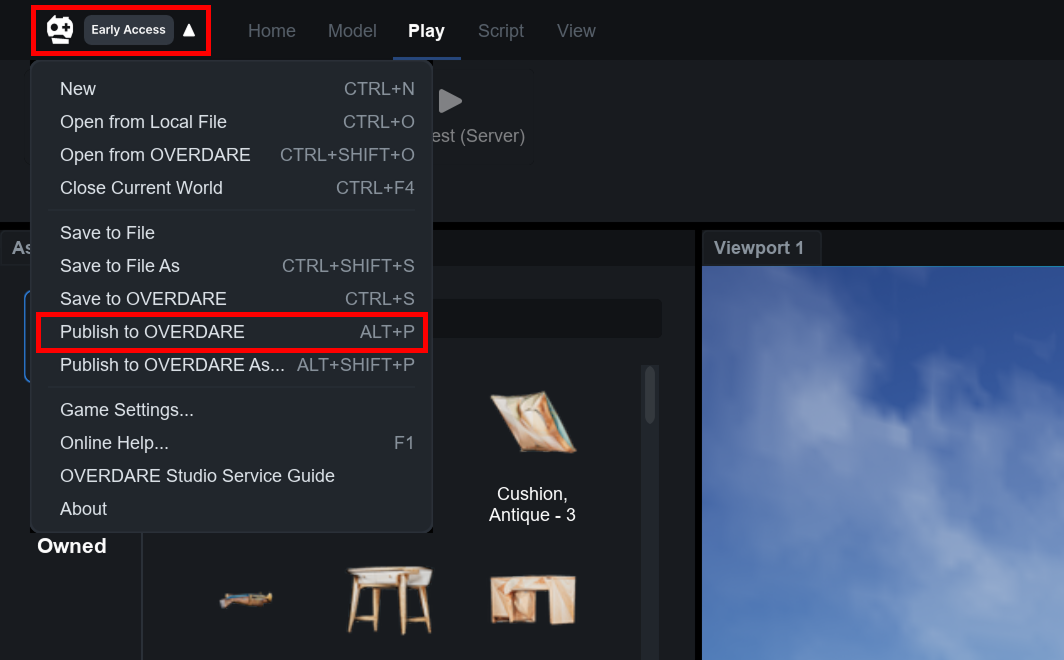
Open the world you created in OVERDARE Studio, click the button in the top-right corner, and select **Publish to OVERDARE** to publish the world.

<figure><img src="https://2064130887-files.gitbook.io/~/files/v0/b/gitbook-x-prod.appspot.com/o/spaces%2FhrvYlLq1mQAq0V0vwPsb%2Fuploads%2Fgit-blob-55d1e71bda46402dafb2b3456063d8c4cb50bb03%2Fworld-publish-1.png?alt=media" alt=""><figcaption></figcaption></figure>

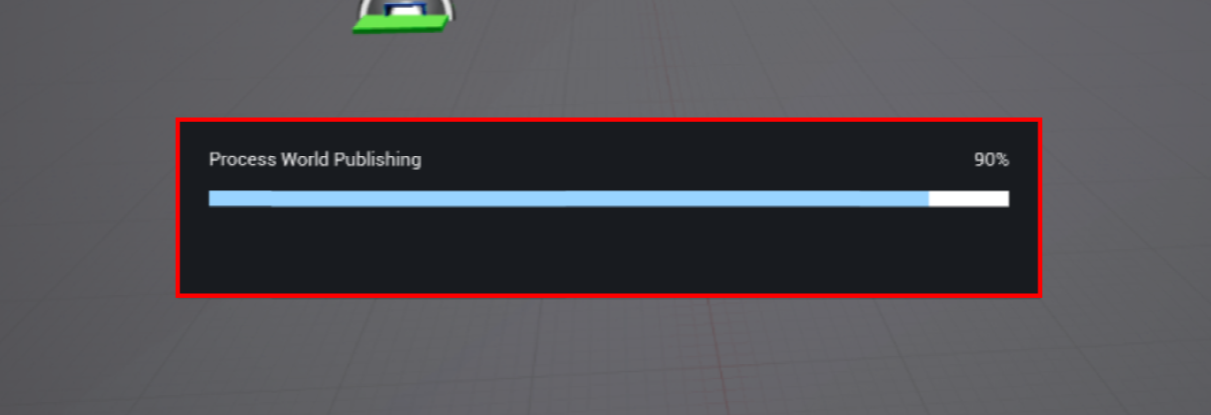
Clicking Publish to OVERDARE initiates the publishing process.

<figure><img src="https://2064130887-files.gitbook.io/~/files/v0/b/gitbook-x-prod.appspot.com/o/spaces%2FhrvYlLq1mQAq0V0vwPsb%2Fuploads%2Fgit-blob-bc501a90c50e9f73a4a760eb8a2d50fd9a40fe0e%2Fimage.png?alt=media" alt=""><figcaption></figcaption></figure>

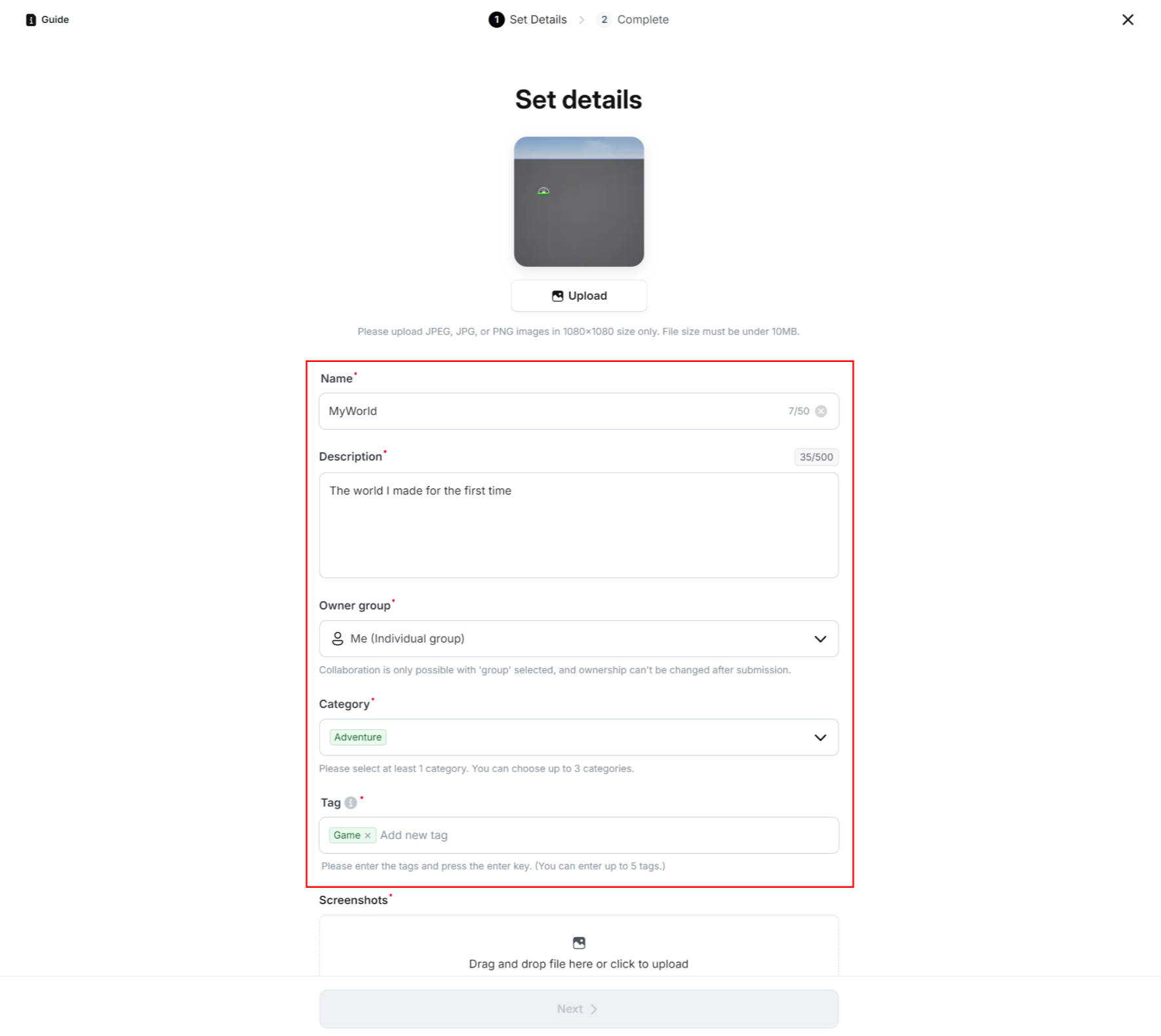
Once the publishing process is complete, you will be **automatically redirected to a web page** to input world information. Enter the world’s name, description, and other details.\
(All information must be filled out to register the world.)

<figure><img src="https://2064130887-files.gitbook.io/~/files/v0/b/gitbook-x-prod.appspot.com/o/spaces%2FhrvYlLq1mQAq0V0vwPsb%2Fuploads%2Fgit-blob-d4cd4911e01ce3b67db81f1f5172bfaefb7b185e%2Fimage.png?alt=media" alt=""><figcaption></figcaption></figure>

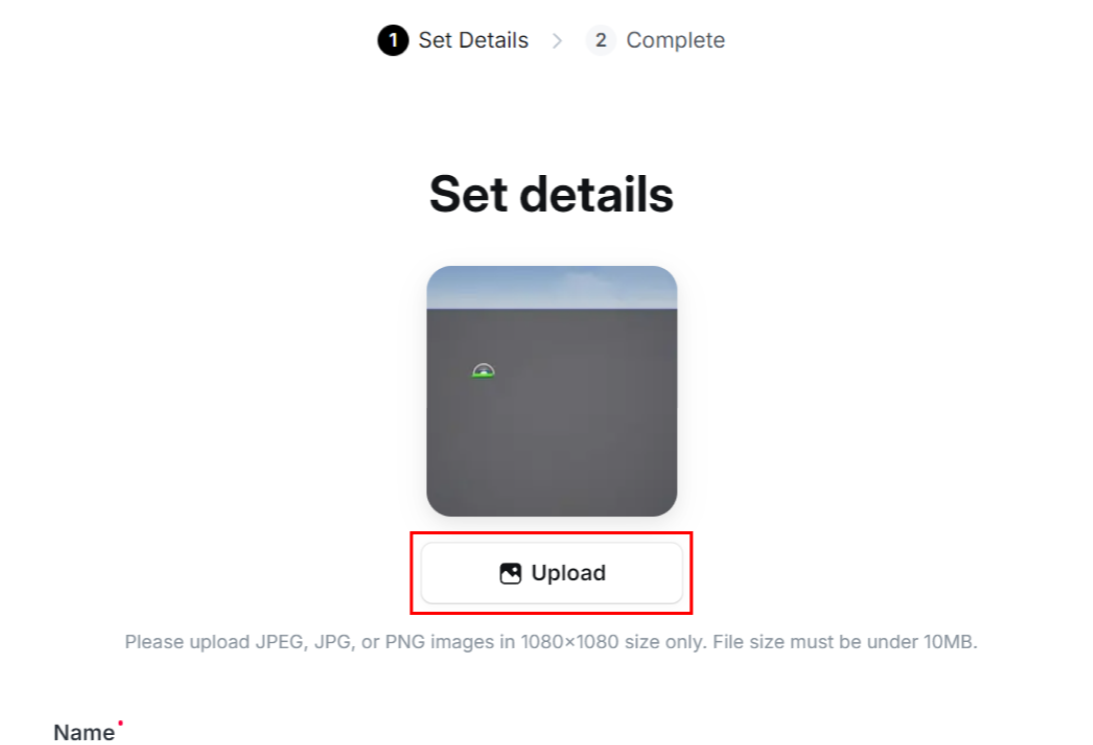
Register a thumbnail image to display in the OVERDARE App’s world list.\
(Only JPEG, JPG, and PNG formats are supported.)

<figure><img src="https://2064130887-files.gitbook.io/~/files/v0/b/gitbook-x-prod.appspot.com/o/spaces%2FhrvYlLq1mQAq0V0vwPsb%2Fuploads%2Fgit-blob-47e16c2740dde721ab3a3fce772eb3a2b9f16026%2Fimage.png?alt=media" alt=""><figcaption></figcaption></figure>

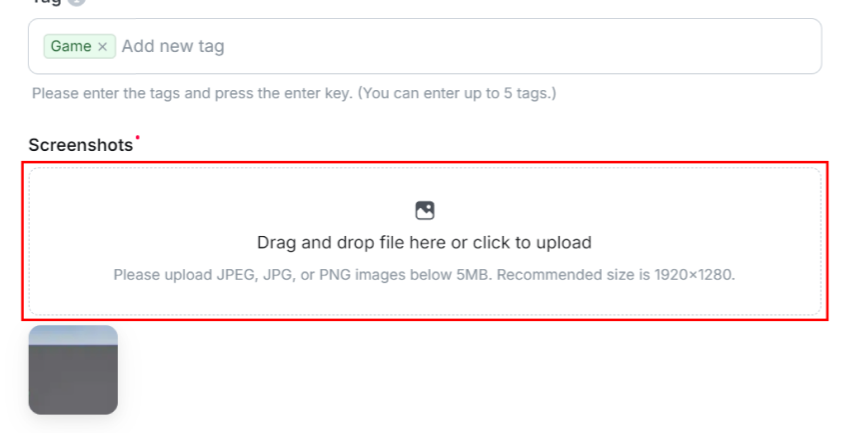
Register an image to display on the OVERDARE App’s world introduction page.\
(Only JPEG, JPG, and PNG formats are supported.)

<figure><img src="https://2064130887-files.gitbook.io/~/files/v0/b/gitbook-x-prod.appspot.com/o/spaces%2FhrvYlLq1mQAq0V0vwPsb%2Fuploads%2Fgit-blob-a72c411f4479d496542aba725f5f0ba460a70172%2Fimage.png?alt=media" alt=""><figcaption></figcaption></figure>

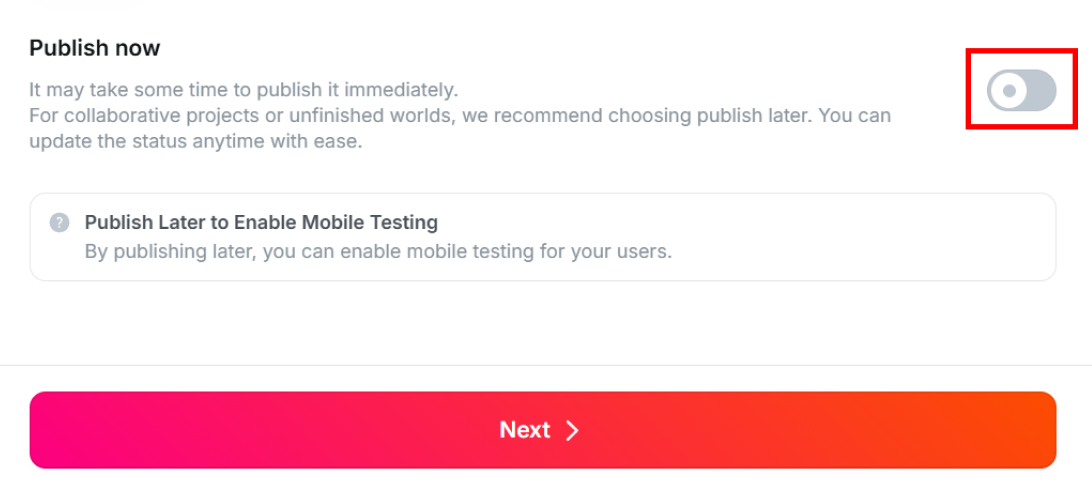
Finally, choose **whether to publish** the world and click Next.\
(If the game is incomplete or requires testing, it is recommended to publish it later.)

<figure><img src="https://2064130887-files.gitbook.io/~/files/v0/b/gitbook-x-prod.appspot.com/o/spaces%2FhrvYlLq1mQAq0V0vwPsb%2Fuploads%2Fgit-blob-c49f30a76b6fdb6d261a2469a3b9e88a17098156%2Fimage.png?alt=media" alt=""><figcaption></figcaption></figure>

* Publish now (Enabled): Publishes the world as **public**. (It may appear in the app depending on access settings.)
* Publish now (Disabled): Publishes the world as **private**. (It will not appear in the app.)

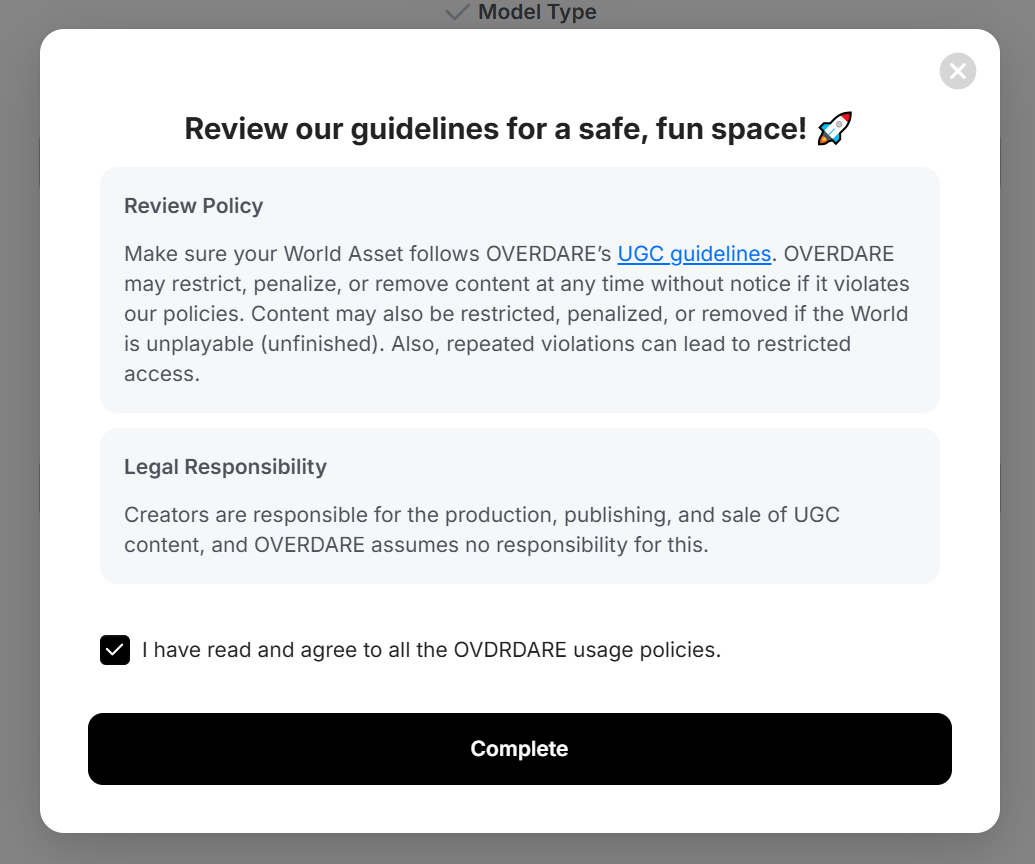
Review the terms and conditions, agree, and click Complete to finish publishing.

<figure><img src="https://2064130887-files.gitbook.io/~/files/v0/b/gitbook-x-prod.appspot.com/o/spaces%2FhrvYlLq1mQAq0V0vwPsb%2Fuploads%2Fgit-blob-1f4e69079b78d68a9522068409845d076a28eaa3%2Fimage.png?alt=media" alt=""><figcaption></figcaption></figure>

{% hint style="warning" %}
Content that violates OVERDARE’s Community Guidelines may result in penalties.
{% endhint %}

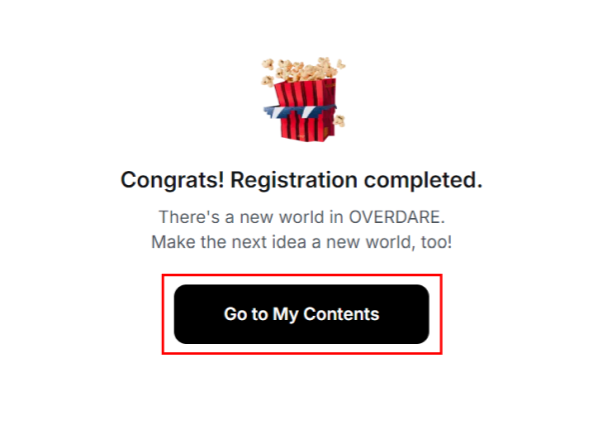
Once the world is published, click **Go to My Contents** to navigate to the Dashboard.\
(If you missed this step, you can refer to Item #6 below.)

<figure><img src="https://2064130887-files.gitbook.io/~/files/v0/b/gitbook-x-prod.appspot.com/o/spaces%2FhrvYlLq1mQAq0V0vwPsb%2Fuploads%2Fgit-blob-061b66cb9630cb4e30aa885ba9caace2b1c33775%2Fimage.png?alt=media" alt=""><figcaption></figcaption></figure>

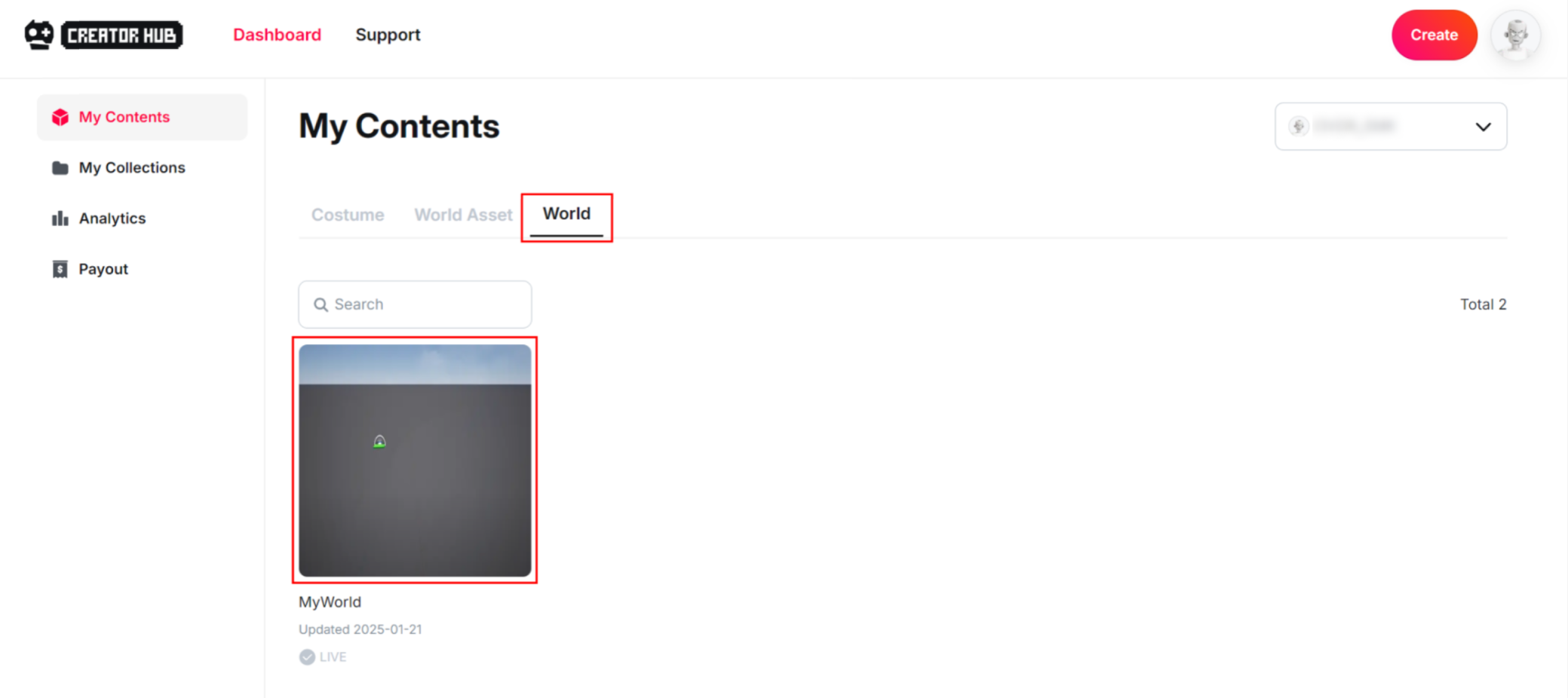
In the Dashboard, click the **World tab** to view your registered worlds. Click on a world to configure its information, version, or access status.

<figure><img src="https://2064130887-files.gitbook.io/~/files/v0/b/gitbook-x-prod.appspot.com/o/spaces%2FhrvYlLq1mQAq0V0vwPsb%2Fuploads%2Fgit-blob-20087f1d3afca5c8bce8881f4289abd510b0ff9a%2Fimage.png?alt=media" alt=""><figcaption></figcaption></figure>

### 2. Checking Versions and Publishing Status <a href="#checking-versions-and-publishing-status" id="checking-versions-and-publishing-status"></a>

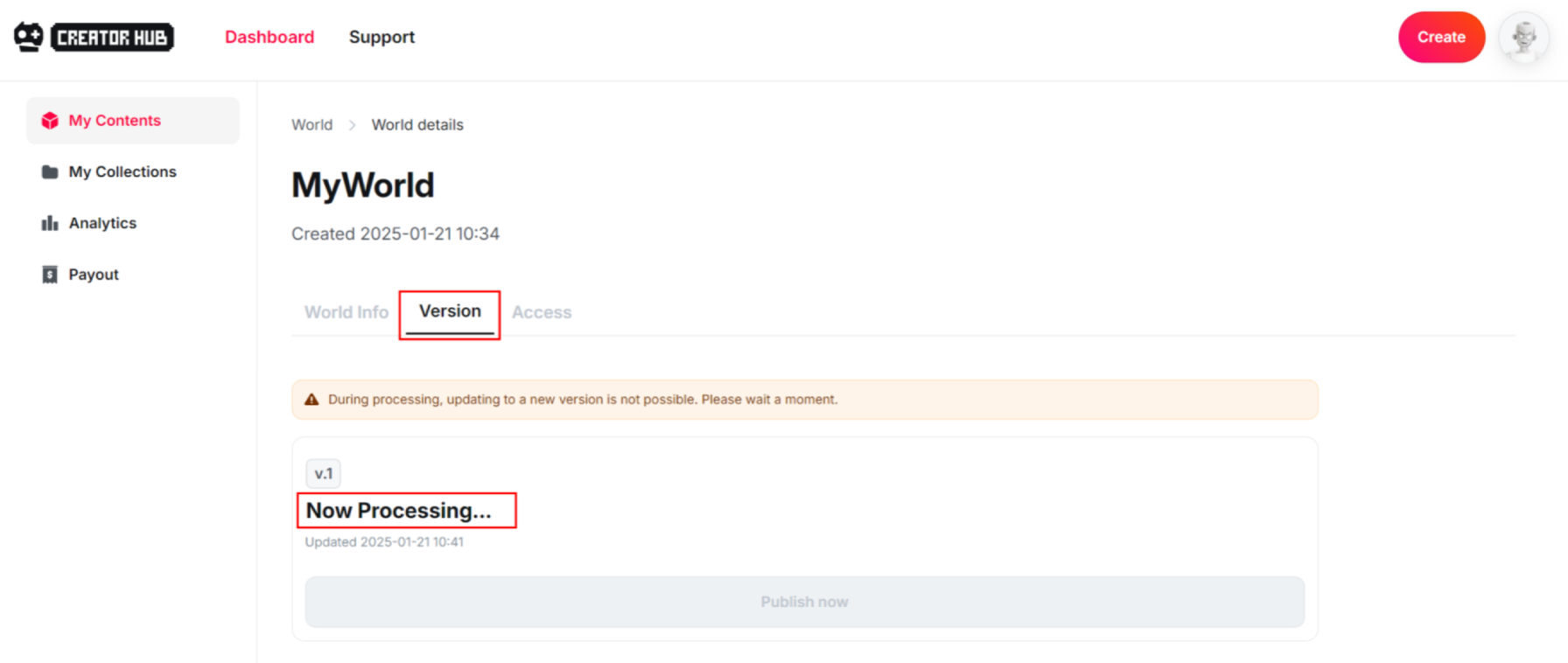
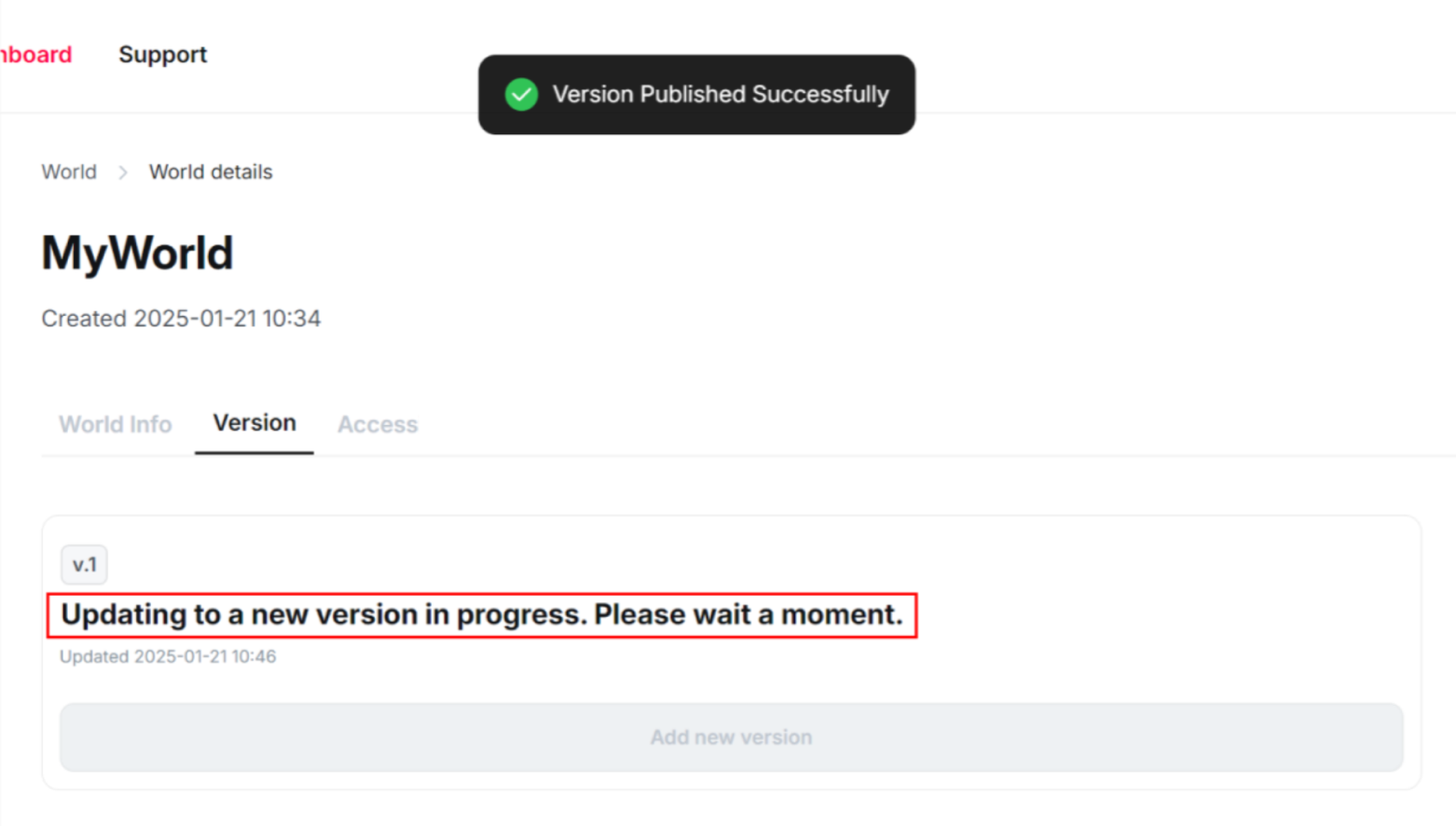
In the **Version tab**, you can check the publishing status and version of the world. “Now Processing” will be displayed during the publishing process, and you’ll need to wait a few moments for the processing to complete.

<figure><img src="https://2064130887-files.gitbook.io/~/files/v0/b/gitbook-x-prod.appspot.com/o/spaces%2FhrvYlLq1mQAq0V0vwPsb%2Fuploads%2Fgit-blob-c11bedf79c3e3c0db17c047c1d7ea4aaebde1e35%2Fimage.png?alt=media" alt=""><figcaption></figcaption></figure>

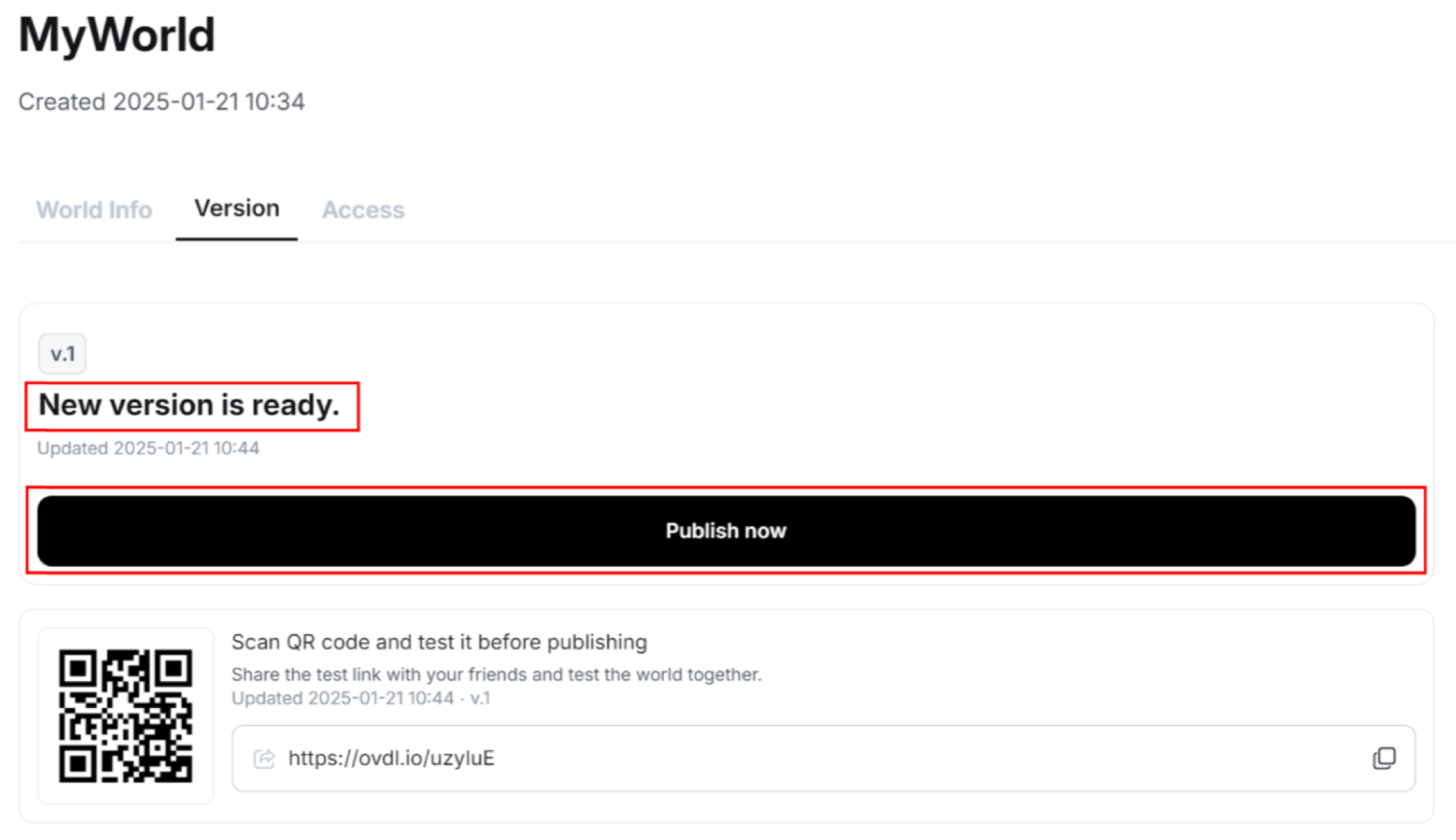
Once publishing is complete, the screen will read: **“Now version is ready”**.

If you have chosen to **Disable** publishing when you published your world, the Publish now button will be enabled, and you can publish by pressing the **Publish now button**.

<figure><img src="https://2064130887-files.gitbook.io/~/files/v0/b/gitbook-x-prod.appspot.com/o/spaces%2FhrvYlLq1mQAq0V0vwPsb%2Fuploads%2Fgit-blob-313cbecaa4bdddc2be0cb16e7d4e399887f3862d%2Fimage.png?alt=media" alt=""><figcaption></figcaption></figure>

Click **Publish now** to update the world’s version to the current one.

<figure><img src="https://2064130887-files.gitbook.io/~/files/v0/b/gitbook-x-prod.appspot.com/o/spaces%2FhrvYlLq1mQAq0V0vwPsb%2Fuploads%2Fgit-blob-a7791fdf349c4ca10baa5cd3166eeade57106846%2Fimage.png?alt=media" alt=""><figcaption></figcaption></figure>

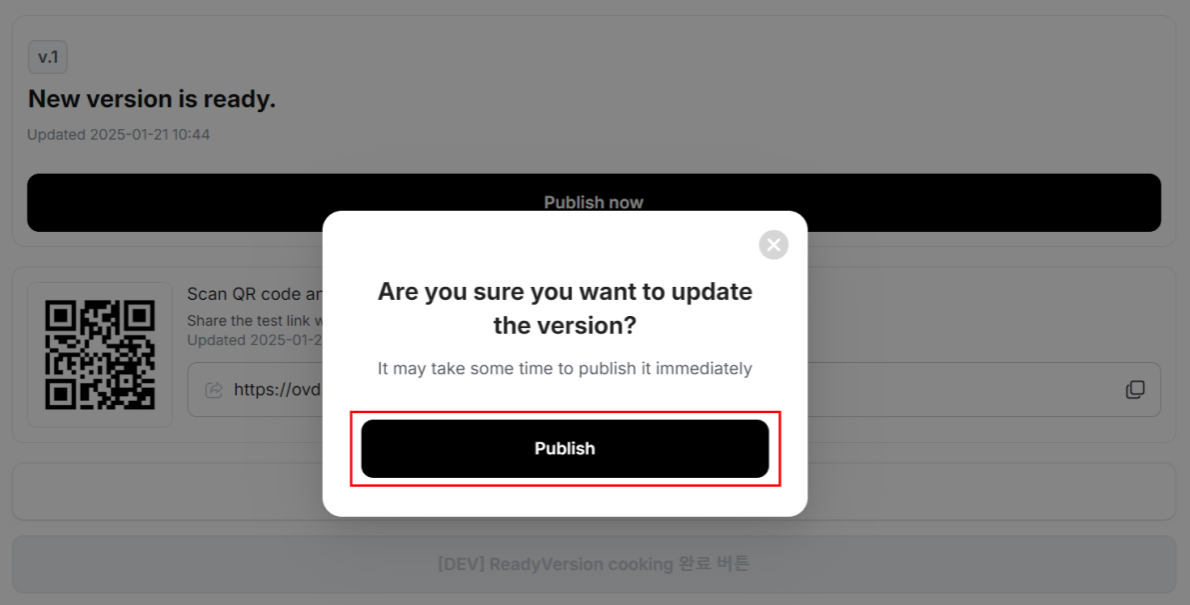
Click the Publish button to proceed with the version update.

<figure><img src="https://2064130887-files.gitbook.io/~/files/v0/b/gitbook-x-prod.appspot.com/o/spaces%2FhrvYlLq1mQAq0V0vwPsb%2Fuploads%2Fgit-blob-676e02eebca55d8e9bbad24b8a21849c205f7bc7%2Fimage.png?alt=media" alt=""><figcaption></figcaption></figure>

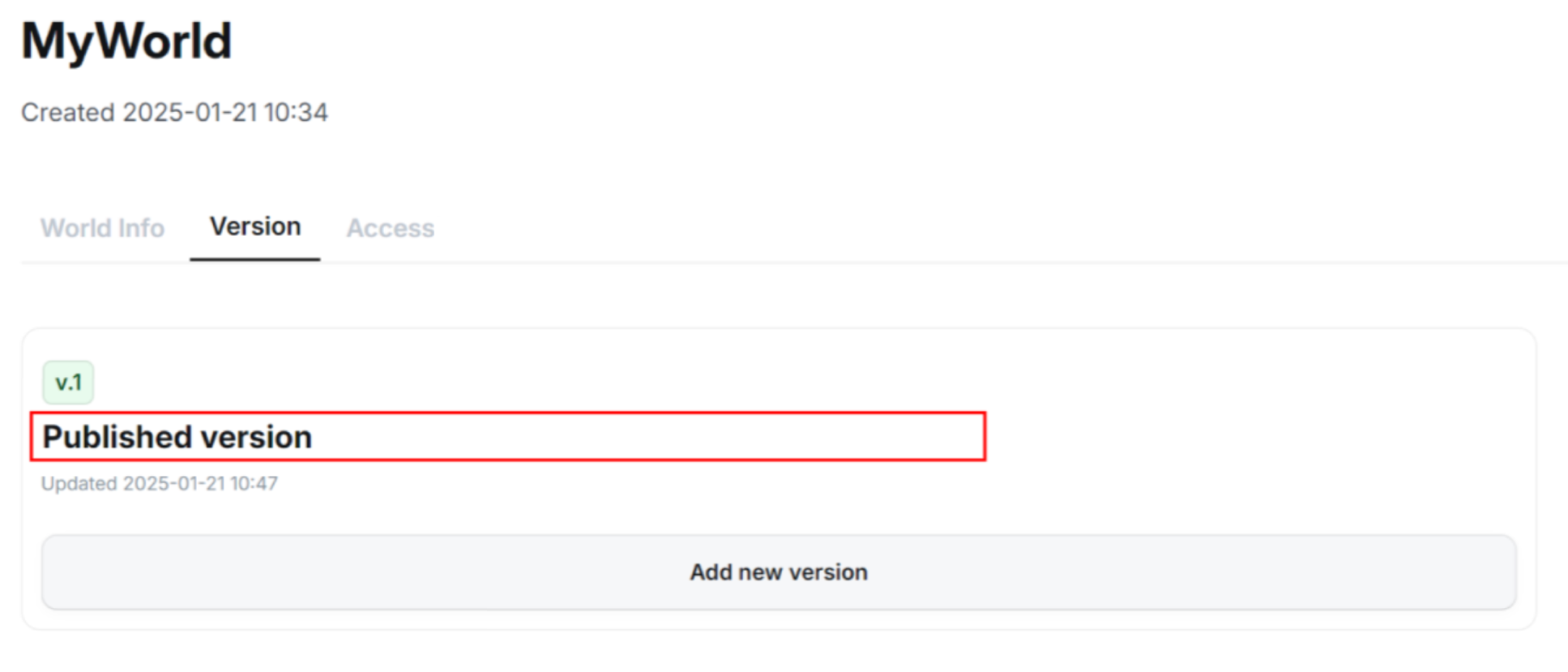
Once the update is complete, the **Published version** will be displayed.

<figure><img src="https://2064130887-files.gitbook.io/~/files/v0/b/gitbook-x-prod.appspot.com/o/spaces%2FhrvYlLq1mQAq0V0vwPsb%2Fuploads%2Fgit-blob-457bbf3513e214dc7d86cab787a4bce6bb07fbd2%2Fimage.png?alt=media" alt=""><figcaption></figcaption></figure>

{% hint style="info" %}
Note that it may take some time for the world to appear in the app.
{% endhint %}

### 3. Setting Access Status <a href="#setting-access-status" id="setting-access-status"></a>

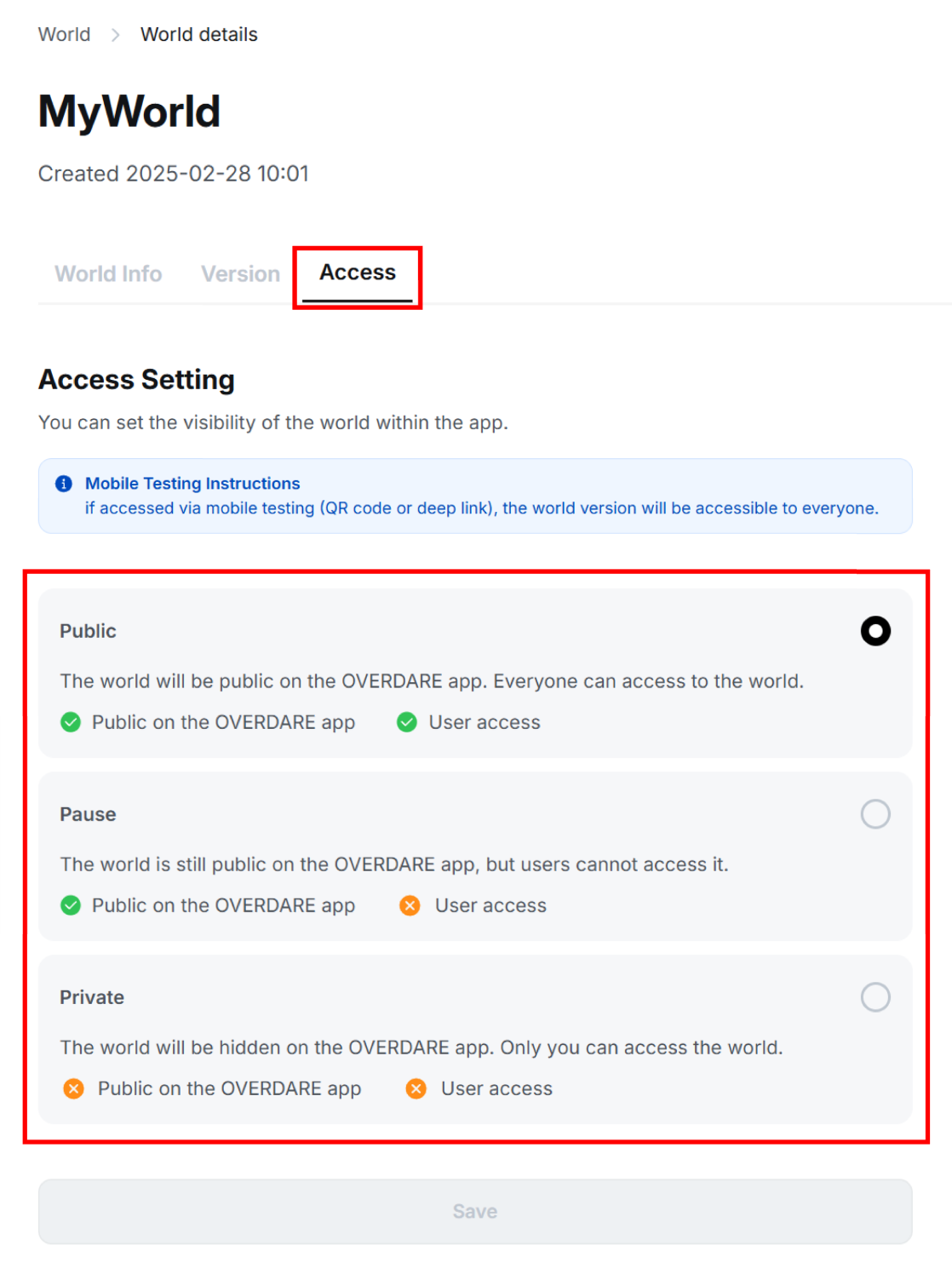
In the **Access tab,** you can modify the world’s access status.

<figure><img src="https://2064130887-files.gitbook.io/~/files/v0/b/gitbook-x-prod.appspot.com/o/spaces%2FhrvYlLq1mQAq0V0vwPsb%2Fuploads%2Fgit-blob-7882a3d5ca8a8d359d3903416e5aa53179248d12%2Fimage.png?alt=media" alt=""><figcaption></figcaption></figure>

<table><thead><tr><th width="120">Status</th><th>Description</th></tr></thead><tbody><tr><td>Public</td><td><ul><li>The world is displayed in the world list within the OVERDARE App.</li><li>Users can join and play the world.</li></ul></td></tr><tr><td>Pause</td><td><ul><li>The world is displayed in the world list within the OVERDARE App.</li><li>Users can view details about the world but cannot join or play it.</li></ul></td></tr><tr><td>Private</td><td><ul><li>The world is not displayed in the world list within the OVERDARE App.</li><li>Users cannot access the world.</li></ul></td></tr></tbody></table>

### 4. Modifying World Information <a href="#modifying-world-information" id="modifying-world-information"></a>

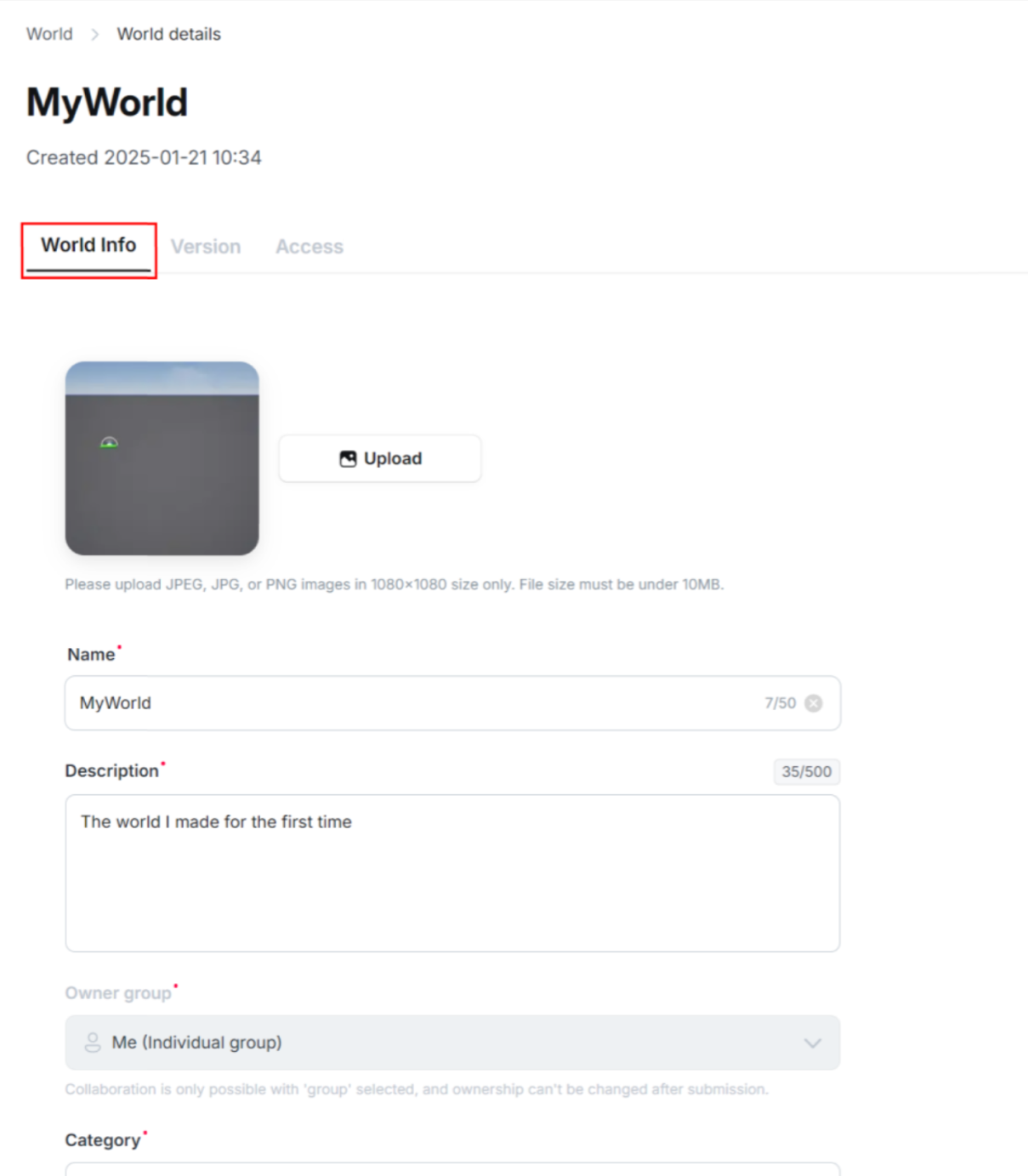
In the **World Info tab**, you can edit the world’s thumbnail, name, description, and other information.\
(After editing, click the Save button at the bottom!)

<figure><img src="https://2064130887-files.gitbook.io/~/files/v0/b/gitbook-x-prod.appspot.com/o/spaces%2FhrvYlLq1mQAq0V0vwPsb%2Fuploads%2Fgit-blob-f8e95c0954ea55fd2a47f593b3475f982ec21371%2Fimage.png?alt=media" alt=""><figcaption></figcaption></figure>

### 5. Conducting Private Tests <a href="#conducting-private-tests" id="conducting-private-tests"></a>

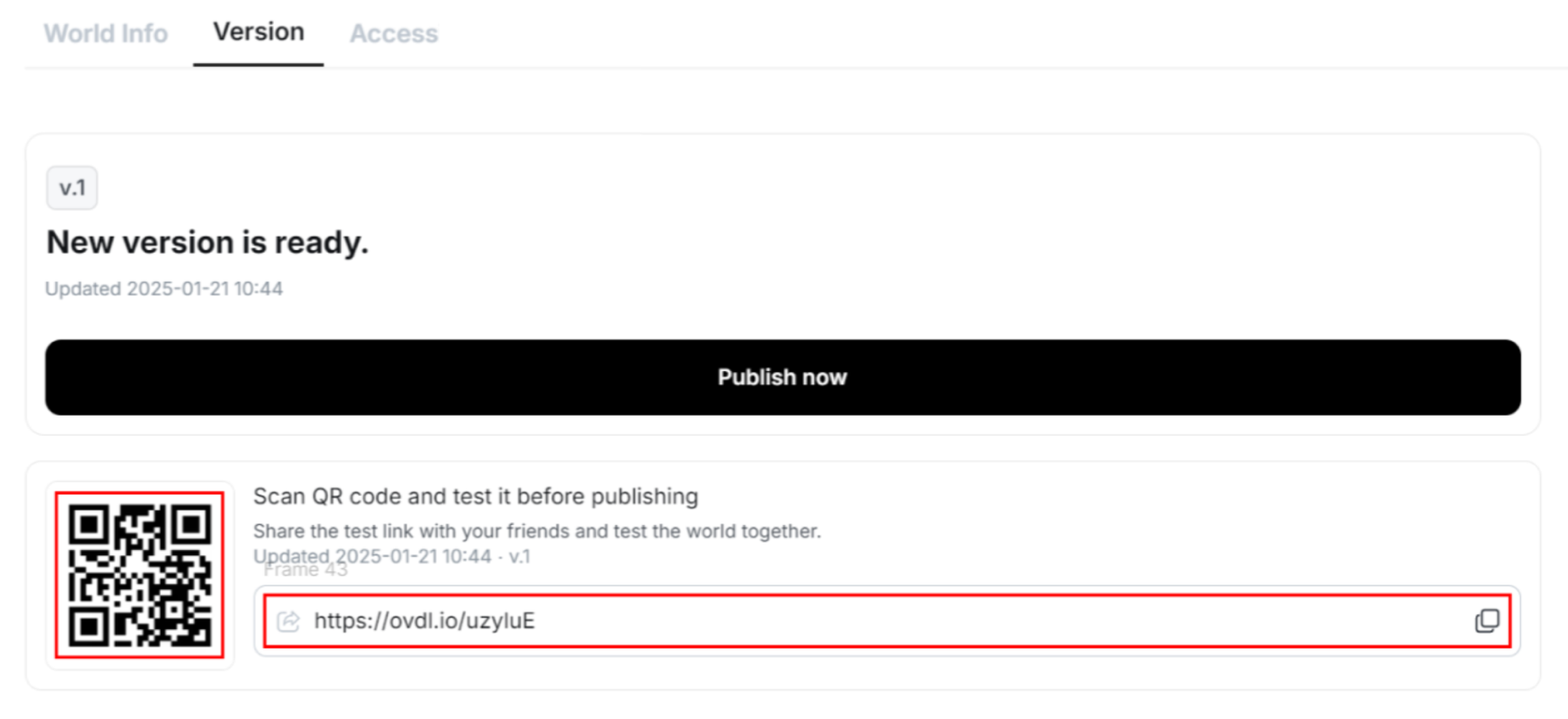
If Publish is set to **Disable**, you can use the **QR code** and **URL** in the **Version tab** to conduct multiplayer tests on mobile devices across different network environments. Share the QR code or URL with users you want to test with.

Note that once **Publish now is activated**, the QR code and URL will no longer be available, and access via these methods will be disabled.

<figure><img src="https://2064130887-files.gitbook.io/~/files/v0/b/gitbook-x-prod.appspot.com/o/spaces%2FhrvYlLq1mQAq0V0vwPsb%2Fuploads%2Fgit-blob-1bf86fde1d3650c645886a71673777473f04ed13%2Fimage.png?alt=media" alt=""><figcaption></figcaption></figure>

{% hint style="info" %}
Mobile testing is not possible in the following cases:

* Sharing/entering a QR code or URL from a previous version instead of the updated current version
* Attempting to access by purposefully changing the URL
  {% endhint %}

### 6. Finding Your World in the Creator Hub <a href="#finding-your-world-in-the-creator-hub" id="finding-your-world-in-the-creator-hub"></a>

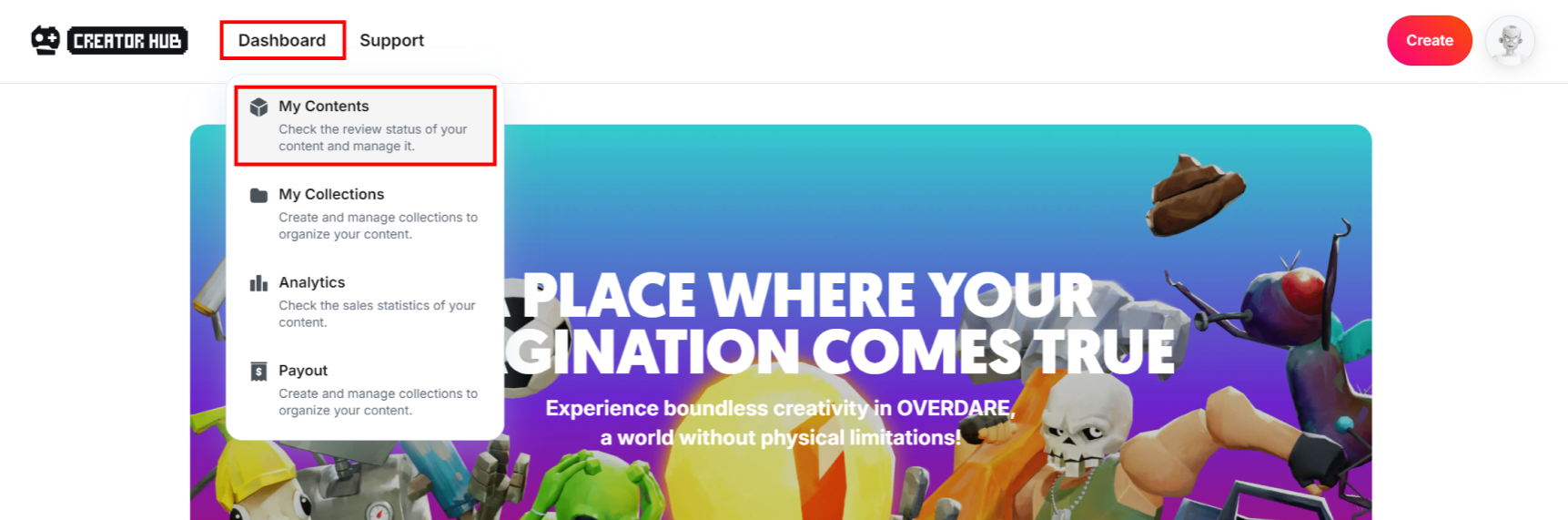
Go to the Dashboard by clicking **Dashboard - My Contents** in the top menu area of the [Creator Hub](https://create.overdare.com/).

<figure><img src="https://2064130887-files.gitbook.io/~/files/v0/b/gitbook-x-prod.appspot.com/o/spaces%2FhrvYlLq1mQAq0V0vwPsb%2Fuploads%2Fgit-blob-93ee3df968caa093b5cbd3eeebf6675093b19e2c%2Fimage.png?alt=media" alt=""><figcaption></figcaption></figure>

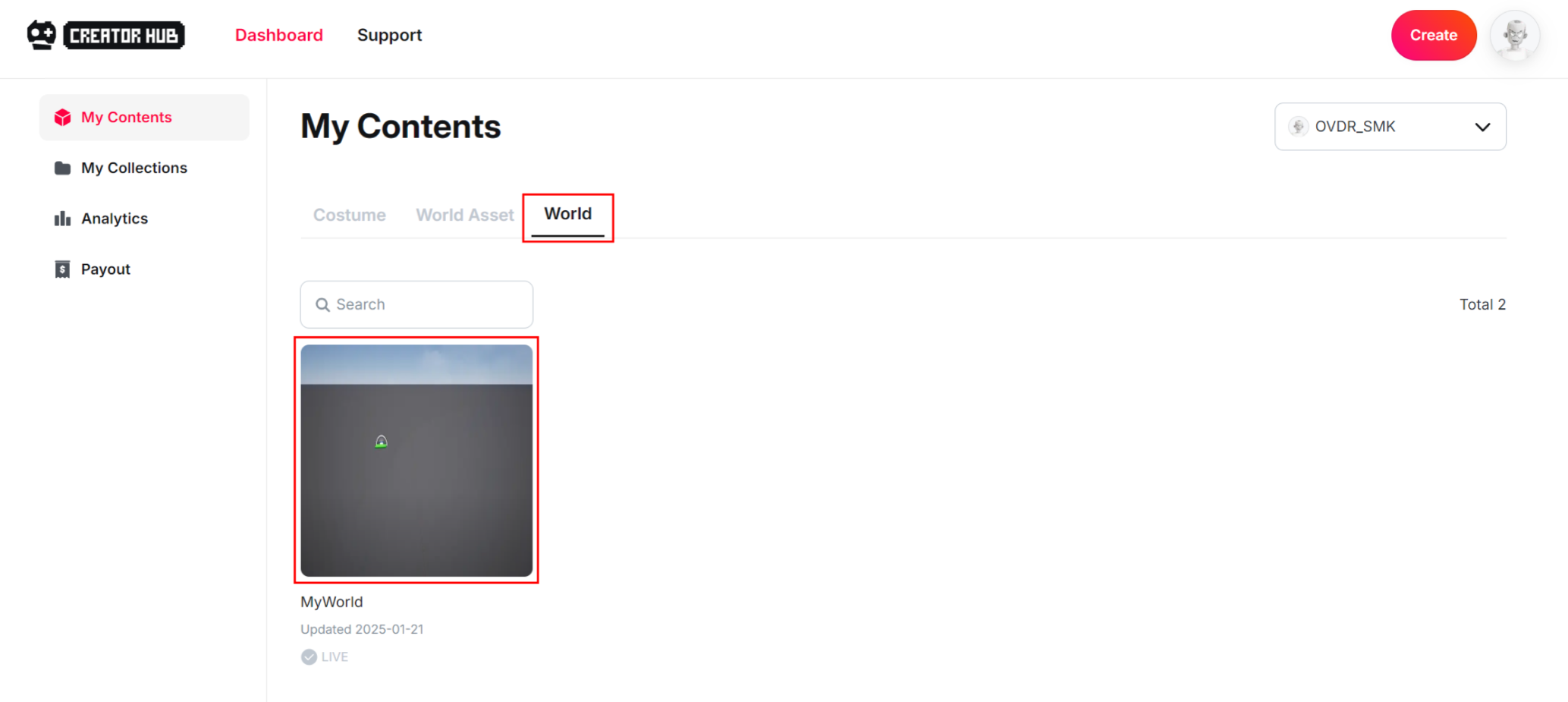
In the Dashboard, click the **World tab** to view all your registered worlds.

<figure><img src="https://2064130887-files.gitbook.io/~/files/v0/b/gitbook-x-prod.appspot.com/o/spaces%2FhrvYlLq1mQAq0V0vwPsb%2Fuploads%2Fgit-blob-7b263debe8536da4b7e68e7534ec8711ac7c4ea6%2Fimage.png?alt=media" alt=""><figcaption></figcaption></figure>

#### 7. Updating a World in OVERDARE Studio <a href="#updating-a-world-in-overdare-studio" id="updating-a-world-in-overdare-studio"></a>

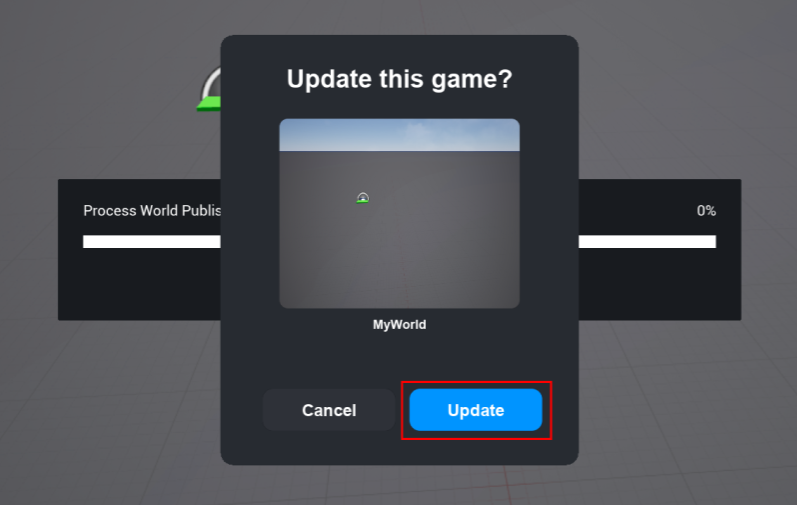
**Open** a **previously published world** in OVERDARE Studio and click Publish to OVERDARE to update the world.

<figure><img src="https://2064130887-files.gitbook.io/~/files/v0/b/gitbook-x-prod.appspot.com/o/spaces%2FhrvYlLq1mQAq0V0vwPsb%2Fuploads%2Fgit-blob-92a11ffb7d34df74771527e1dd1ed67aff4e94a4%2Fimage.png?alt=media" alt=""><figcaption></figcaption></figure>

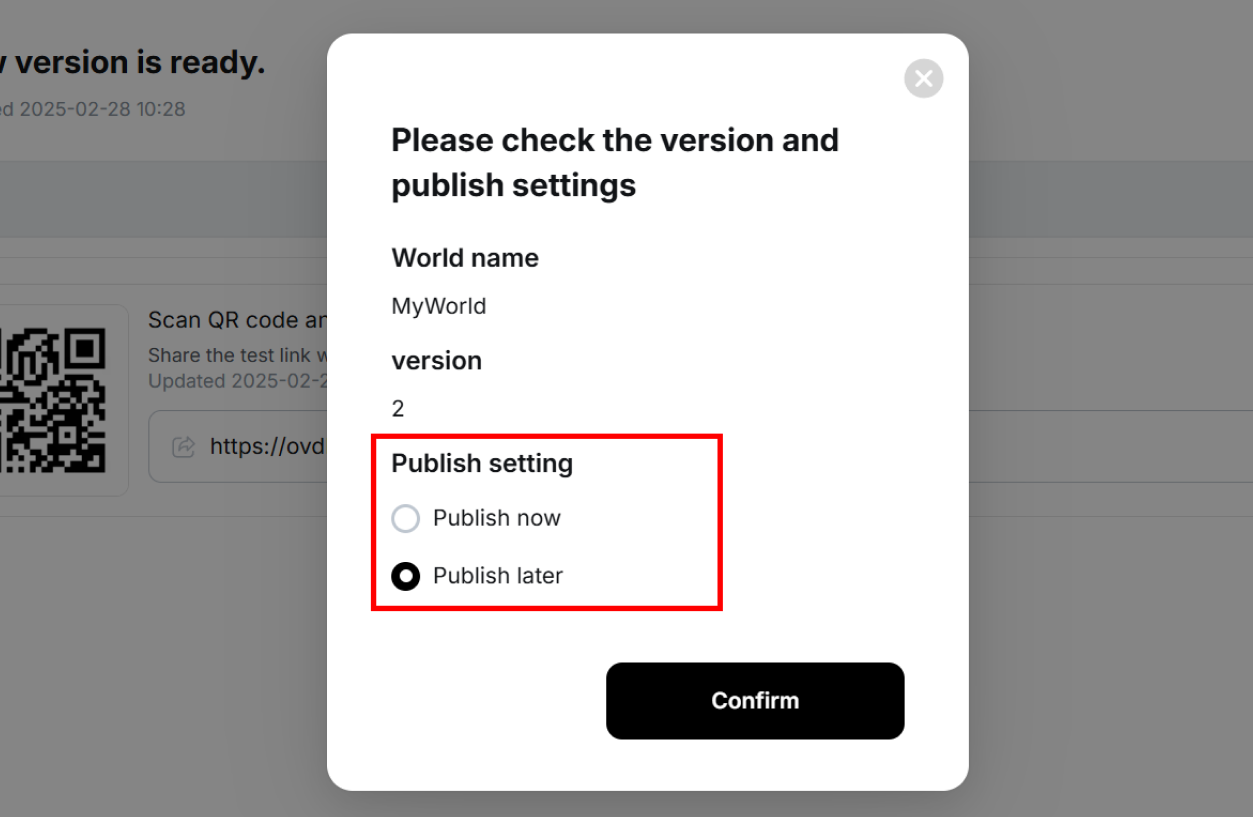
Clicking Update will automatically redirect you to a web page to choose whether to publish the world. Choose whether to publish in the web page.\
(The subsequent steps are the same as during the initial registration.)

<figure><img src="https://2064130887-files.gitbook.io/~/files/v0/b/gitbook-x-prod.appspot.com/o/spaces%2FhrvYlLq1mQAq0V0vwPsb%2Fuploads%2Fgit-blob-b21f1a4bc58da22b1af73546d24b4bbeb7cc26c5%2Fimage.png?alt=media" alt=""><figcaption></figcaption></figure>

* Publish now: Replaces the published version of the world.
* Publish later: Does not replace the published version of the world.