# Collaboration

## Overview <a href="#overview" id="overview"></a>

Using the Collaboration feature, you can work on worlds together with group members. Enhance productivity through real-time collaboration!

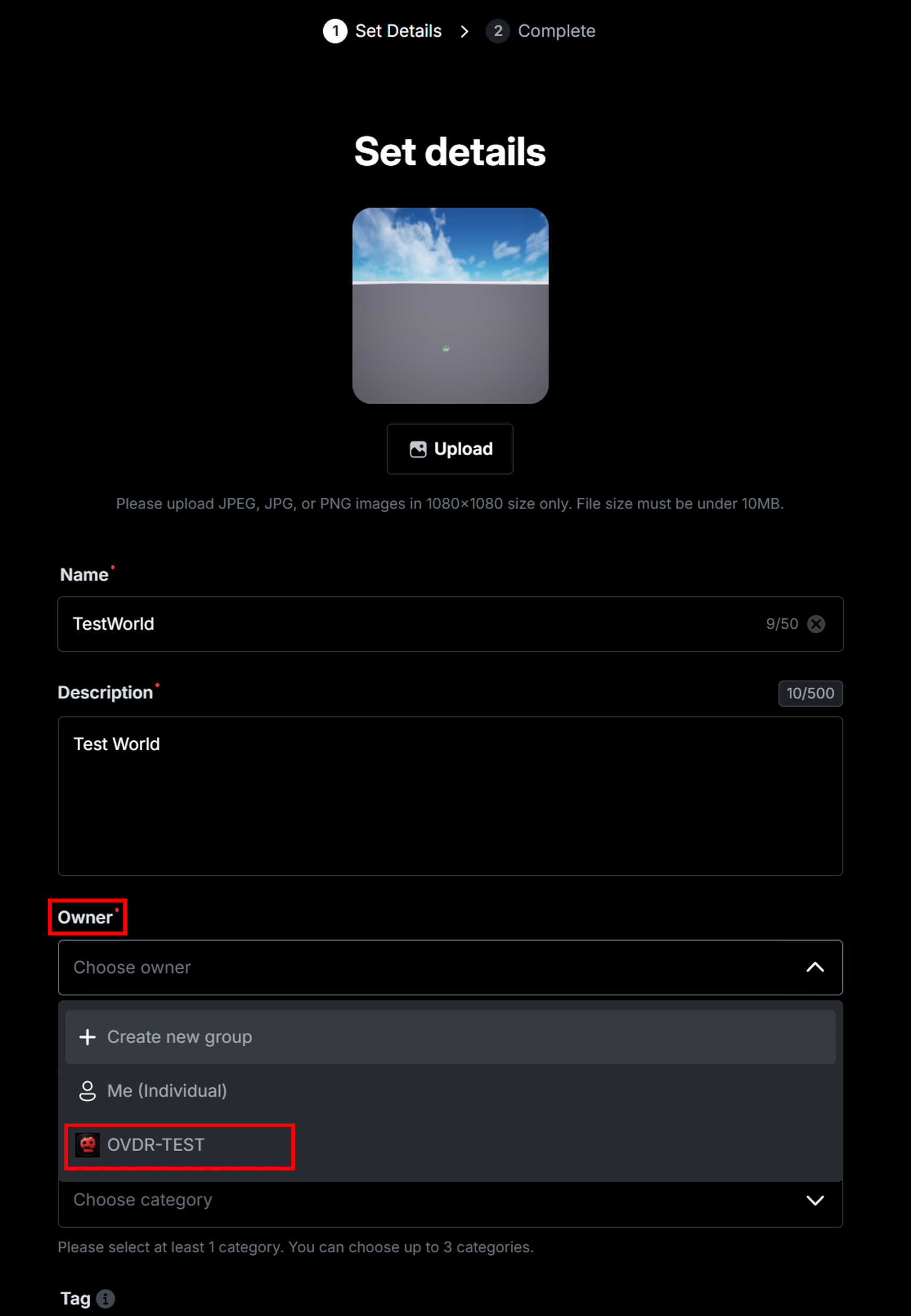
To collaborate on a world using the Collaboration feature, you must **set a group as the Owner Group** when publishing the world.

## Collaborating on Worlds <a href="#collaborating-on-worlds" id="collaborating-on-worlds"></a>

### Setting the World’s Owner Group <a href="#setting-the-worlds-owner-group" id="setting-the-worlds-owner-group"></a>

When publishing a world in OVERDARE Studio, you can set the Owner Group for the world. If the **Owner Group** is **set to a group** instead of Me, you can **collaborate** with other members of the group.

The **Owner Group** of a published world cannot be changed. To make a privately worked-on world available for collaboration, you must republish the world and set the Owner Group to a group.

<figure><img src="https://2064130887-files.gitbook.io/~/files/v0/b/gitbook-x-prod.appspot.com/o/spaces%2FhrvYlLq1mQAq0V0vwPsb%2Fuploads%2Fgit-blob-a67f97d32b5bc878297ef0d3753969ae549755c4%2Fimage.png?alt=media" alt=""><figcaption></figcaption></figure>

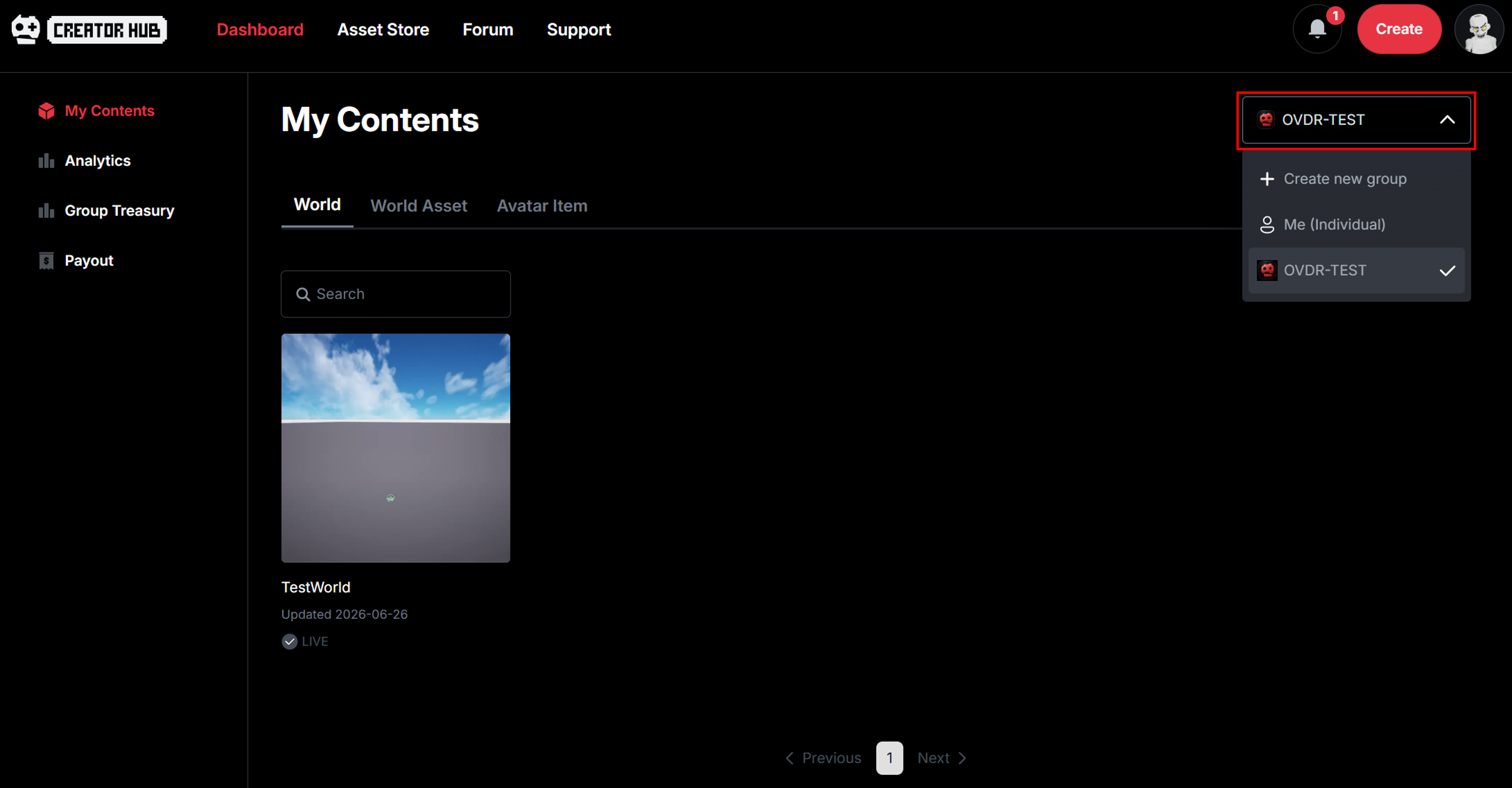
On the world management page in the Dashboard, click the **drop-down** in the top-right corner to display worlds with the **Group Owner** set as **Me** or worlds belonging to a **specific group**.

The dropdown displays both the **groups you own** and the **groups you have joined**.

<figure><img src="https://2064130887-files.gitbook.io/~/files/v0/b/gitbook-x-prod.appspot.com/o/spaces%2FhrvYlLq1mQAq0V0vwPsb%2Fuploads%2Fgit-blob-4a629a6a46807096e0e938033e3eca8fcdda38eb%2Fimage.png?alt=media" alt=""><figcaption></figcaption></figure>

### List of Worlds Available for Collaboration <a href="#list-of-worlds-available-for-collaboration" id="list-of-worlds-available-for-collaboration"></a>

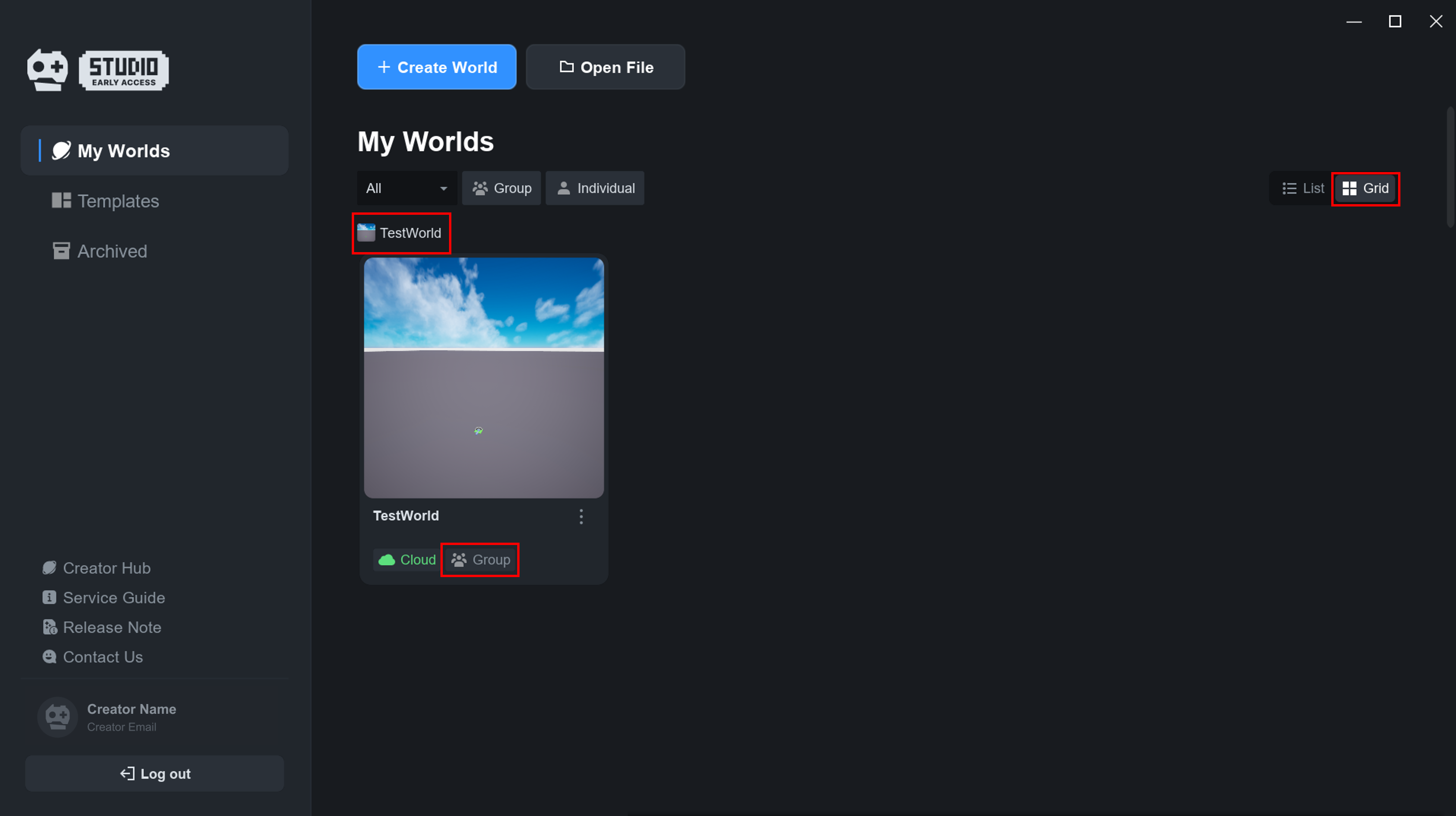
Worlds available for collaboration can be viewed in the **My Group list** on the OVERDARE Studio home screen.

<figure><img src="https://2064130887-files.gitbook.io/~/files/v0/b/gitbook-x-prod.appspot.com/o/spaces%2FhrvYlLq1mQAq0V0vwPsb%2Fuploads%2Fgit-blob-bdce542dc0b1c10452174e7a223782eed16b00a0%2Fcollaboration-2.png?alt=media" alt=""><figcaption></figcaption></figure>

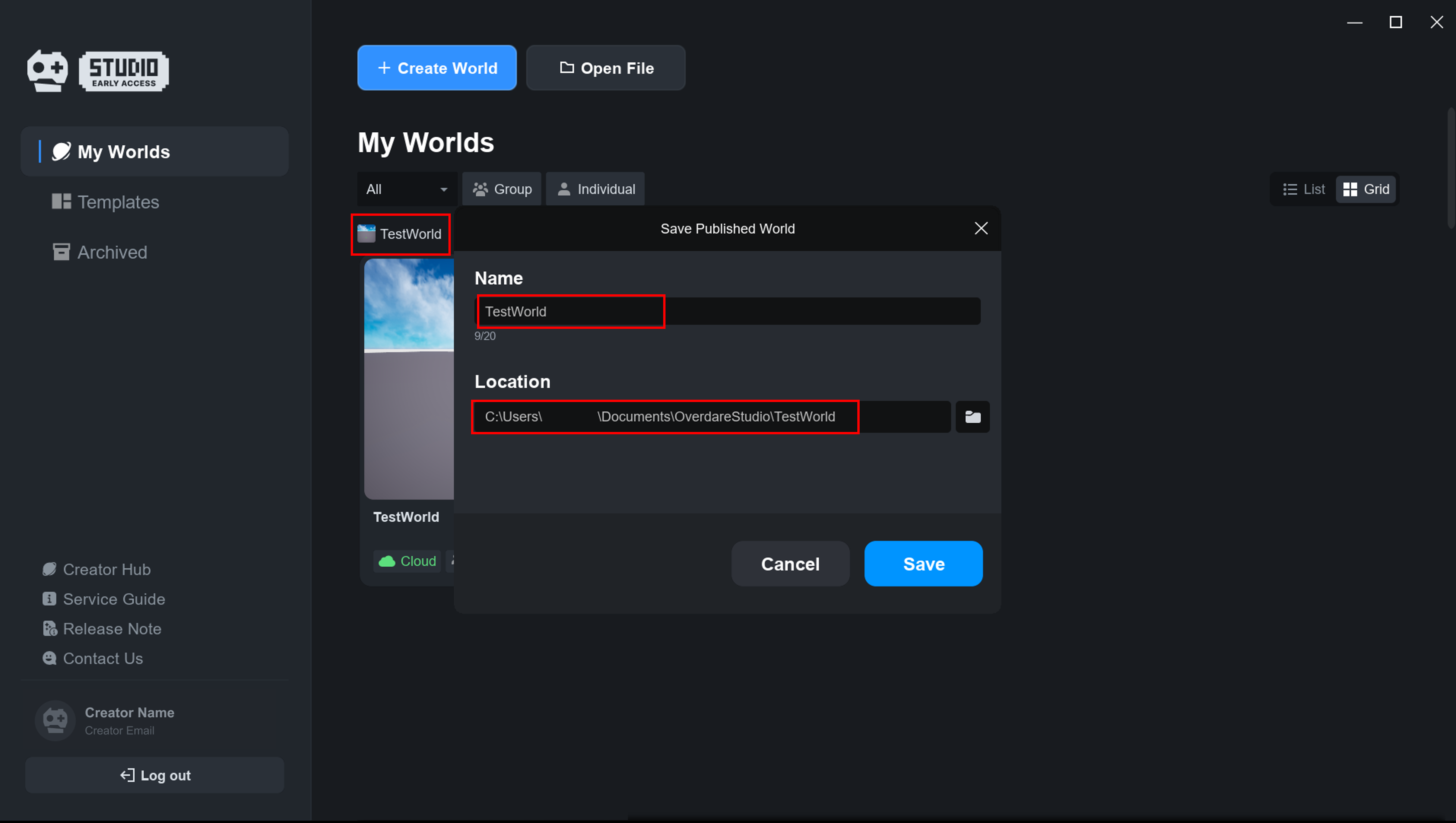
When you first click a world for collaboration, you will be prompted to specify the folder where the world’s map file will be saved. Enter the folder name in Name and the save location in Location.

<figure><img src="https://2064130887-files.gitbook.io/~/files/v0/b/gitbook-x-prod.appspot.com/o/spaces%2FhrvYlLq1mQAq0V0vwPsb%2Fuploads%2Fgit-blob-f7ac1b2ecf53cbb67072d839220ee6e34807f901%2Fcollaboration-3.png?alt=media" alt=""><figcaption></figcaption></figure>

### Collaborating <a href="#collaborating" id="collaborating"></a>

When you open a world for collaboration from the OVERDARE Studio home screen, **up to 3 collaborators** will be displayed in the top-right corner. Hover over the person icon to see their name.

<figure><img src="https://2064130887-files.gitbook.io/~/files/v0/b/gitbook-x-prod.appspot.com/o/spaces%2FhrvYlLq1mQAq0V0vwPsb%2Fuploads%2Fgit-blob-3482e8f97300d8ffadce4e3e750a1d62fe7ded9b%2Fcollaboration-4.png?alt=media" alt=""><figcaption></figcaption></figure>

Changes made by others are reflected and displayed in real-time, and drafts are automatically saved.

<figure><img src="https://2064130887-files.gitbook.io/~/files/v0/b/gitbook-x-prod.appspot.com/o/spaces%2FhrvYlLq1mQAq0V0vwPsb%2Fuploads%2Fgit-blob-919e82ba5e260c801610e1772d4d236db84c9002%2FCollabo1.gif?alt=media" alt=""><figcaption></figcaption></figure>

❗ Tip. To avoid losing work in unstable network environments, don’t forget to manually save your work using Ctrl+S!

Script changes are applied when the collaborator saves (Ctrl+S).\
(It is recommended to avoid multiple people working on the same script simultaneously.)

<figure><img src="https://2064130887-files.gitbook.io/~/files/v0/b/gitbook-x-prod.appspot.com/o/spaces%2FhrvYlLq1mQAq0V0vwPsb%2Fuploads%2Fgit-blob-8c0f9ffa4d18c7929d613fc9e7453d692b659083%2FCollabo2.gif?alt=media" alt=""><figcaption></figcaption></figure>

### Importing Assets <a href="#importing-assets" id="importing-assets"></a>

Members can also import assets or upload imported assets.

### Publishing a World <a href="#publishing-a-world" id="publishing-a-world"></a>

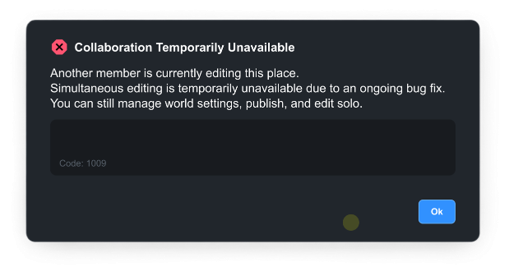
Only the **world owner** or **group owner** can publish worlds or modify world information. If a member attempts to publish a world, a warning message will appear as shown below.

<div align="left"><figure><img src="https://2064130887-files.gitbook.io/~/files/v0/b/gitbook-x-prod.appspot.com/o/spaces%2FhrvYlLq1mQAq0V0vwPsb%2Fuploads%2Fgit-blob-dd5be9cf2ed4d2b31b08fbc425d2405602c8e65b%2Fimage.png?alt=media" alt=""><figcaption></figcaption></figure></div>

## Managing a Group <a href="#managing-a-group" id="managing-a-group"></a>

### Creating a Group <a href="#creating-a-group" id="creating-a-group"></a>

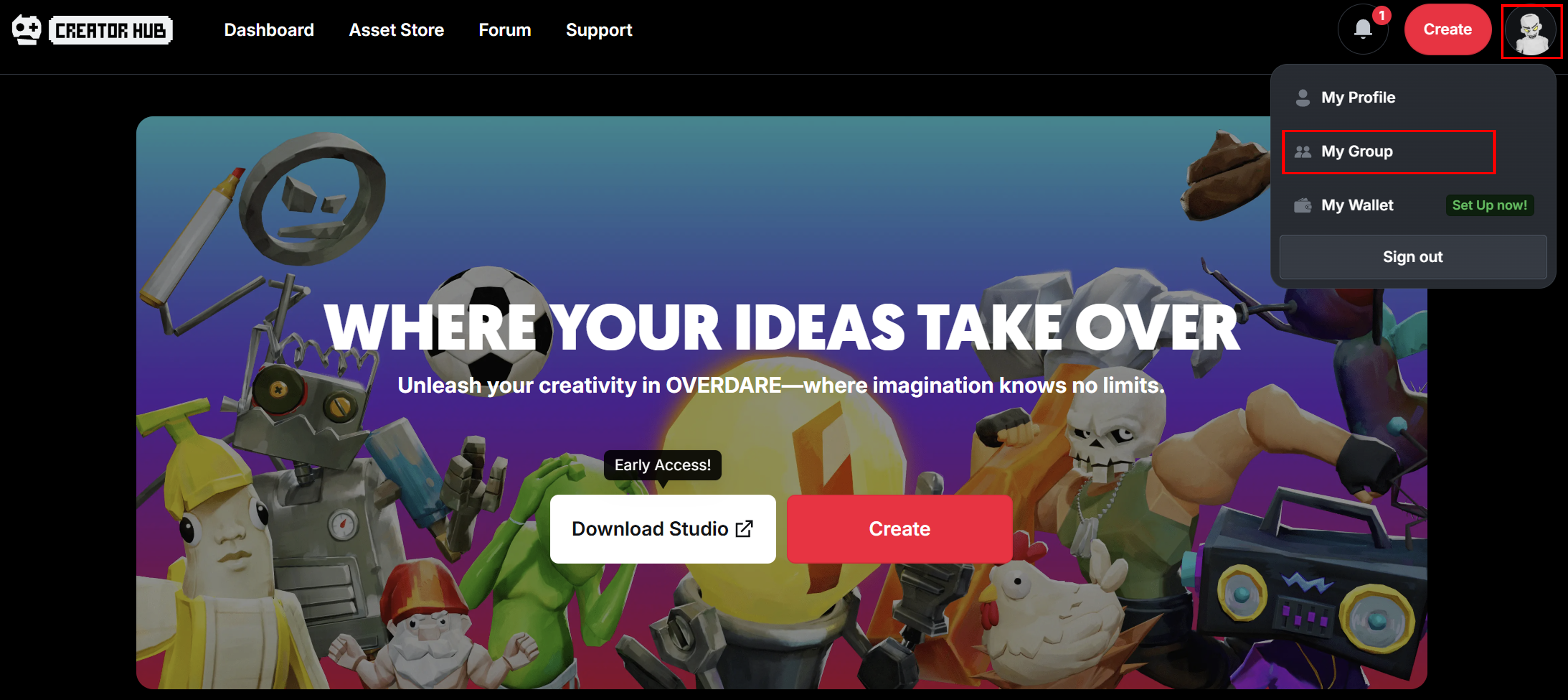
In the [Creator Hub](https://create.overdare.com/), click your avatar picture in the top-right corner, then click **My Group** from the menu that appears.

<figure><img src="https://2064130887-files.gitbook.io/~/files/v0/b/gitbook-x-prod.appspot.com/o/spaces%2FhrvYlLq1mQAq0V0vwPsb%2Fuploads%2Fgit-blob-4d3527506f9b6c9140530d5d00c9f91dd27d350e%2Fimage.png?alt=media" alt=""><figcaption></figcaption></figure>

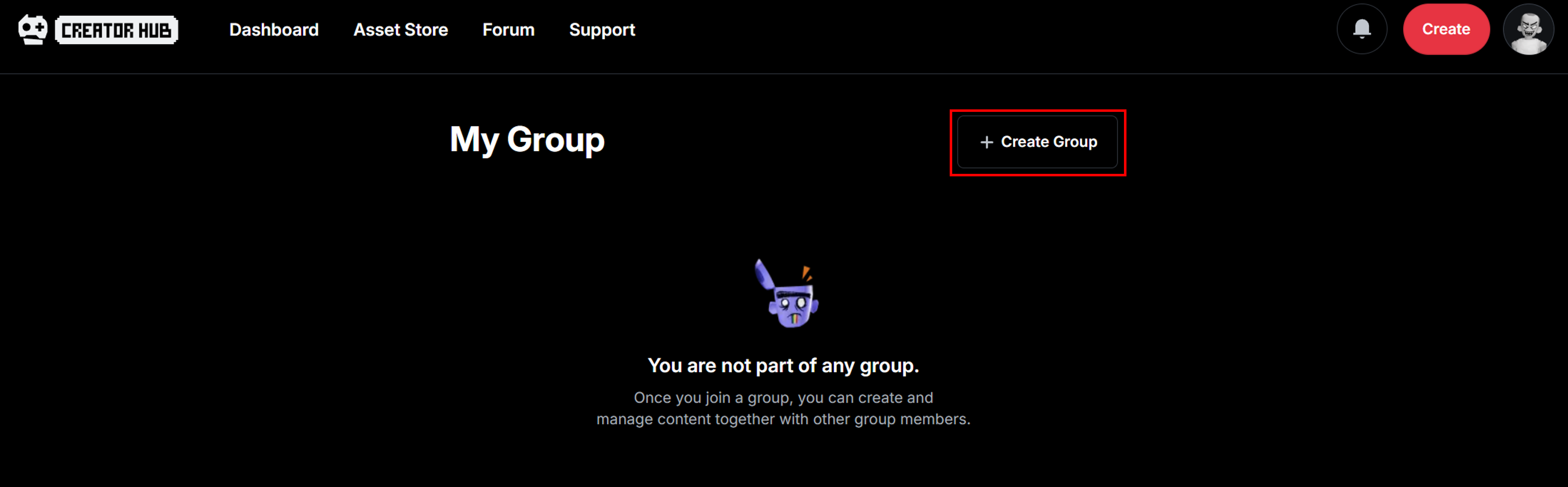
On the My Group page, click the **+ Create Group button**.

<figure><img src="https://2064130887-files.gitbook.io/~/files/v0/b/gitbook-x-prod.appspot.com/o/spaces%2FhrvYlLq1mQAq0V0vwPsb%2Fuploads%2Fgit-blob-928aaa4e008f04ebfa1518d140ba66f4c7fd9e94%2Fimage.png?alt=media" alt=""><figcaption></figcaption></figure>

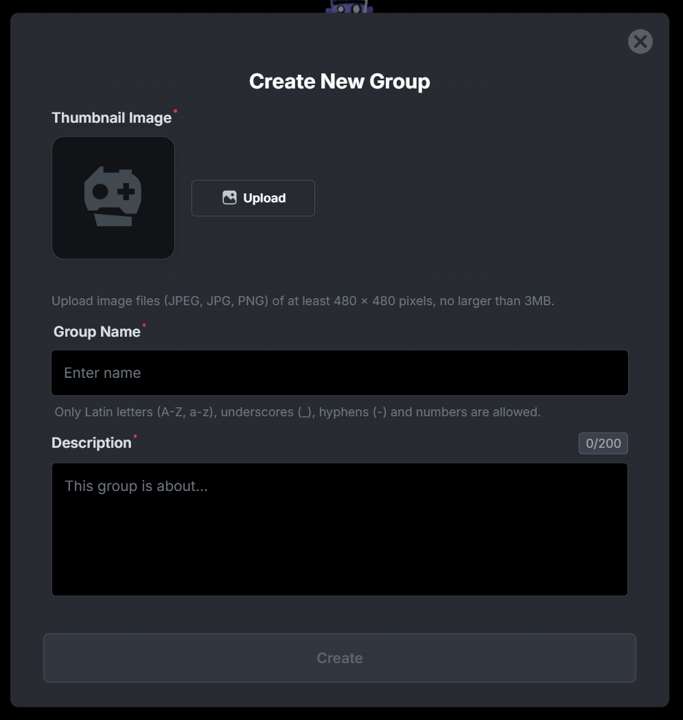
Enter the group’s image, name, and description, then click the **Create button** to create the group.

<figure><img src="https://2064130887-files.gitbook.io/~/files/v0/b/gitbook-x-prod.appspot.com/o/spaces%2FhrvYlLq1mQAq0V0vwPsb%2Fuploads%2Fgit-blob-fe9005b50f6fbbf39a27fd703bc0243dce2f6b7d%2Fimage.png?alt=media" alt=""><figcaption></figcaption></figure>

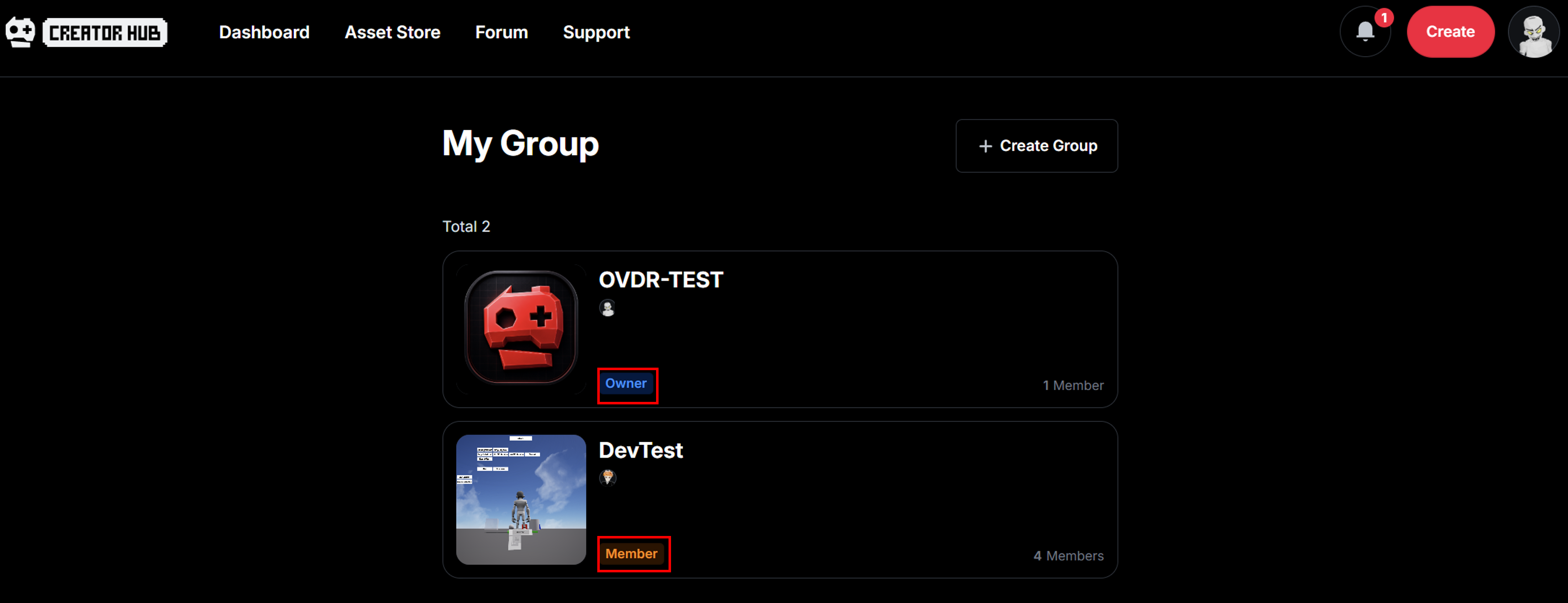
The created group will appear on the My Group page. **Groups you create** will be marked as **Owner**, while groups you **join as a member** will be marked as **Member**.

<figure><img src="https://2064130887-files.gitbook.io/~/files/v0/b/gitbook-x-prod.appspot.com/o/spaces%2FhrvYlLq1mQAq0V0vwPsb%2Fuploads%2Fgit-blob-4aa9890595baf9c6505717d6d3b02e6a6d8b4ccb%2Fimage.png?alt=media" alt=""><figcaption></figcaption></figure>

### Editing a Group <a href="#editing-a-group" id="editing-a-group"></a>

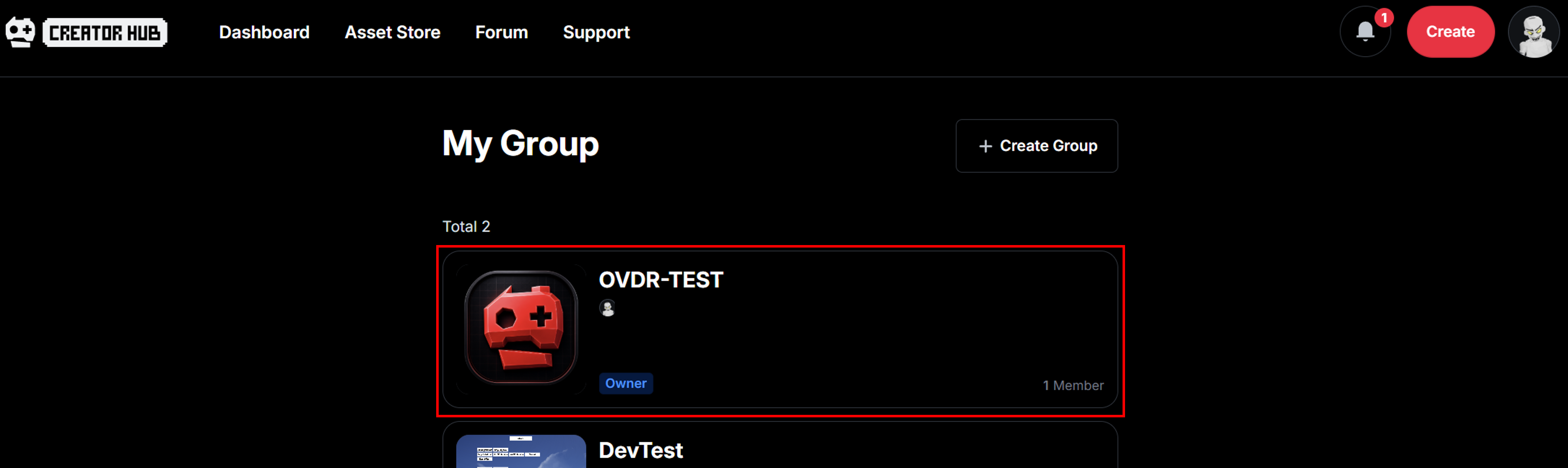
On the My Group page, click a group to go to its settings page.

<figure><img src="https://2064130887-files.gitbook.io/~/files/v0/b/gitbook-x-prod.appspot.com/o/spaces%2FhrvYlLq1mQAq0V0vwPsb%2Fuploads%2Fgit-blob-21aea94c57094cdb80ee28a0245b47606b244979%2Fimage.png?alt=media" alt=""><figcaption></figcaption></figure>

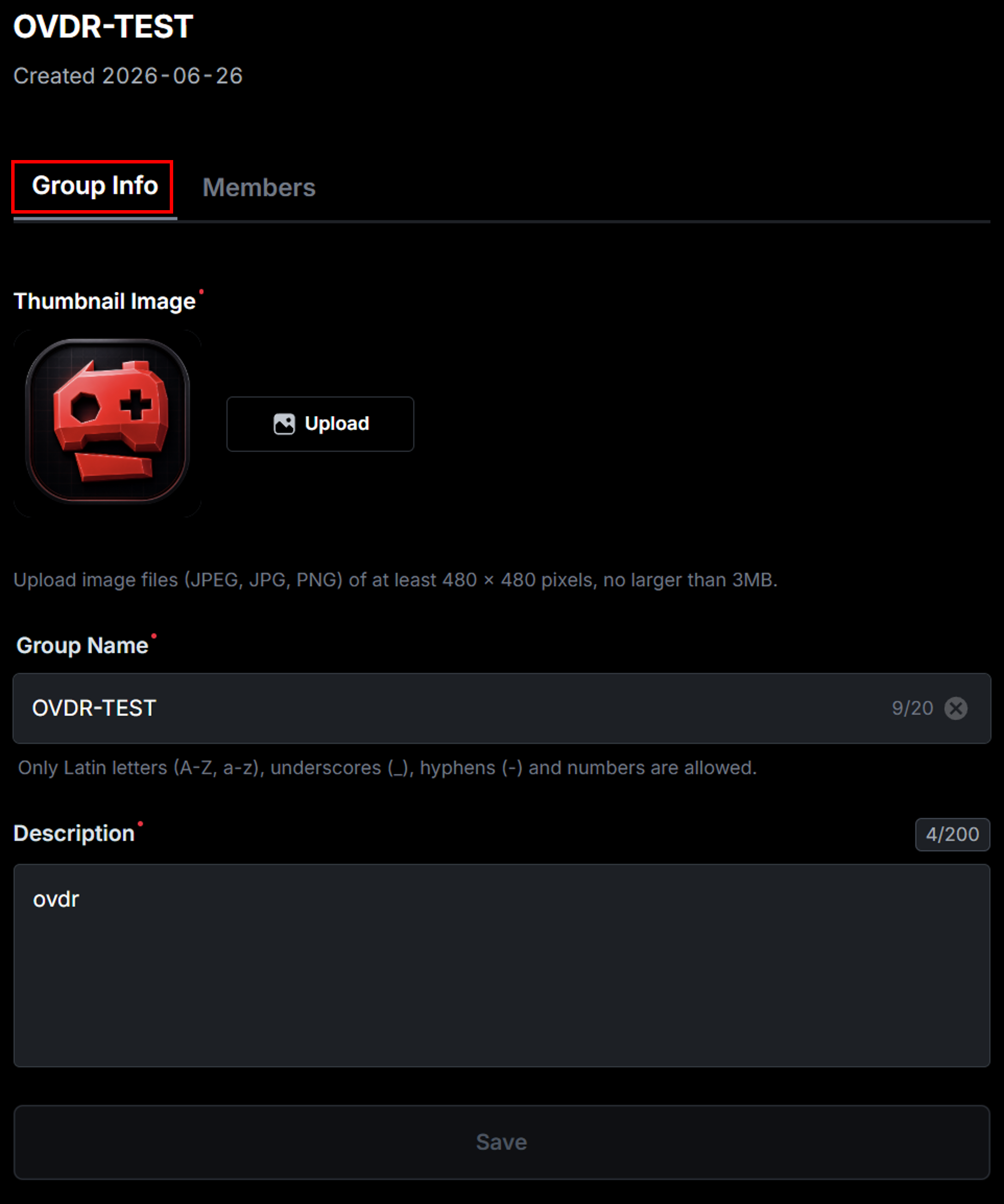
In the **Group Info tab**, you can edit the group’s thumbnail, name, description, and other information.\
(After editing, click the Save button at the bottom!)

<figure><img src="https://2064130887-files.gitbook.io/~/files/v0/b/gitbook-x-prod.appspot.com/o/spaces%2FhrvYlLq1mQAq0V0vwPsb%2Fuploads%2Fgit-blob-e1523360891dc4e8f384cd72754a6c31c37eb6b9%2Fimage.png?alt=media" alt=""><figcaption></figcaption></figure>

### Adding a Member <a href="#adding-a-member" id="adding-a-member"></a>

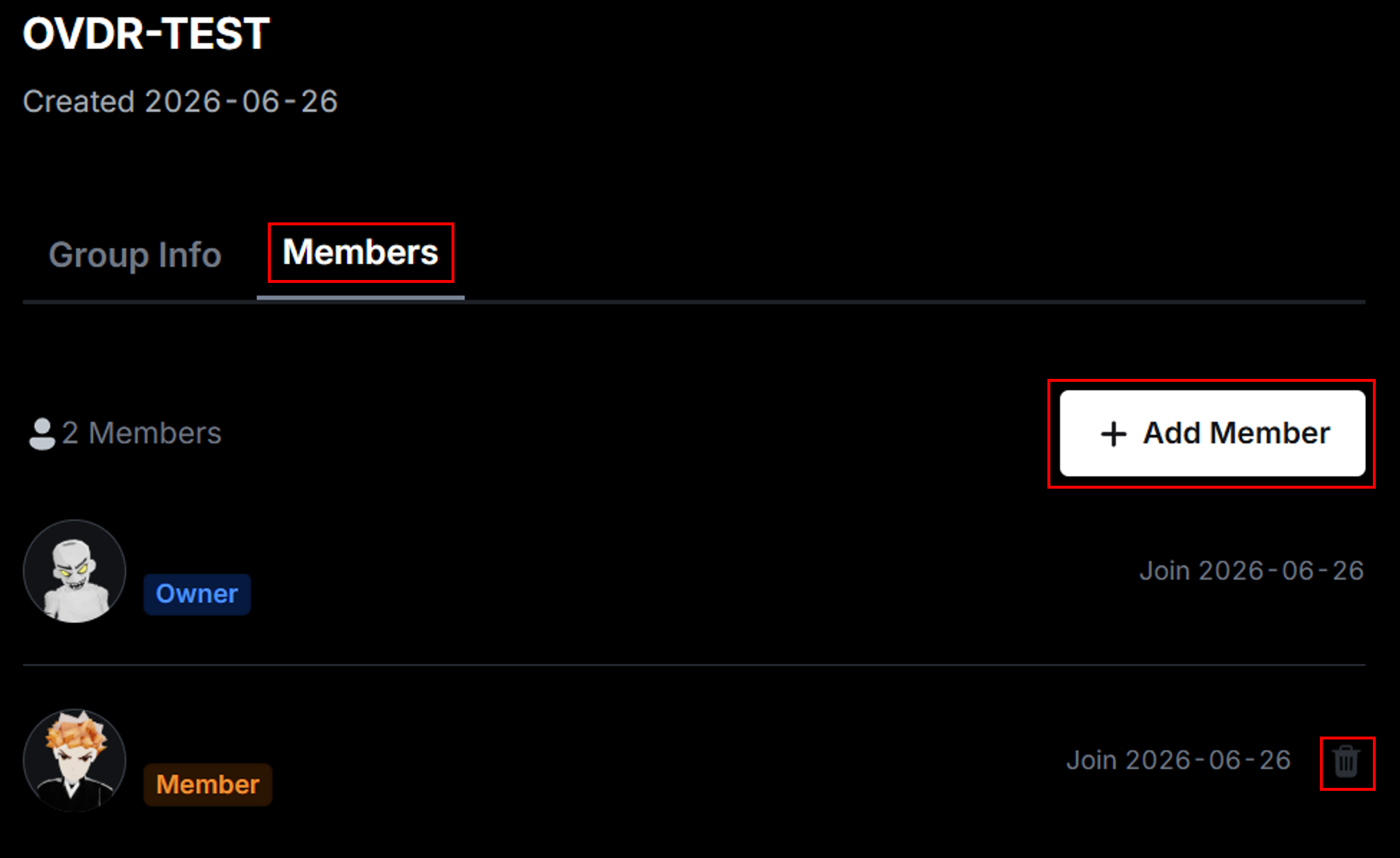
On the group settings page, go to the **Members tab** to view the group’s members. If you are the group owner, a **+ Add Member** button will appear. Click it to add members.

Group owners can also click the trash bin icon to remove registered members.

<figure><img src="https://2064130887-files.gitbook.io/~/files/v0/b/gitbook-x-prod.appspot.com/o/spaces%2FhrvYlLq1mQAq0V0vwPsb%2Fuploads%2Fgit-blob-c87be4753b80e86fe00c3fd9aa5a0d274e64fc63%2Fimage.png?alt=media" alt=""><figcaption></figcaption></figure>

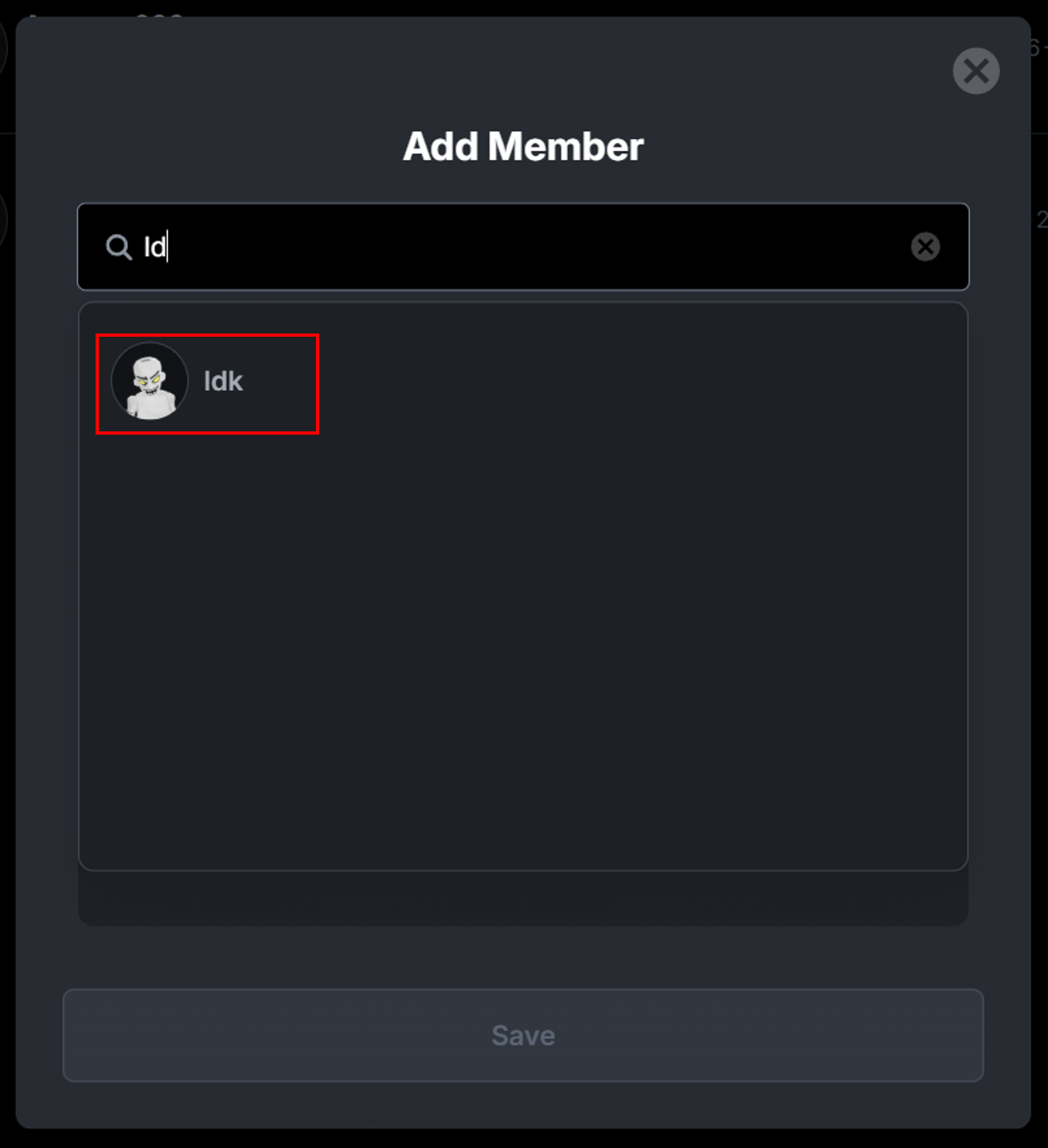
In the Add Member screen that shows up when you click on the Add Member button, **search for the creator’s name** and **click on the creator** that appears.

<figure><img src="https://2064130887-files.gitbook.io/~/files/v0/b/gitbook-x-prod.appspot.com/o/spaces%2FhrvYlLq1mQAq0V0vwPsb%2Fuploads%2Fgit-blob-7deccb310077b965edb15cf397f18473e6eee852%2Fimage.png?alt=media" alt=""><figcaption></figcaption></figure>

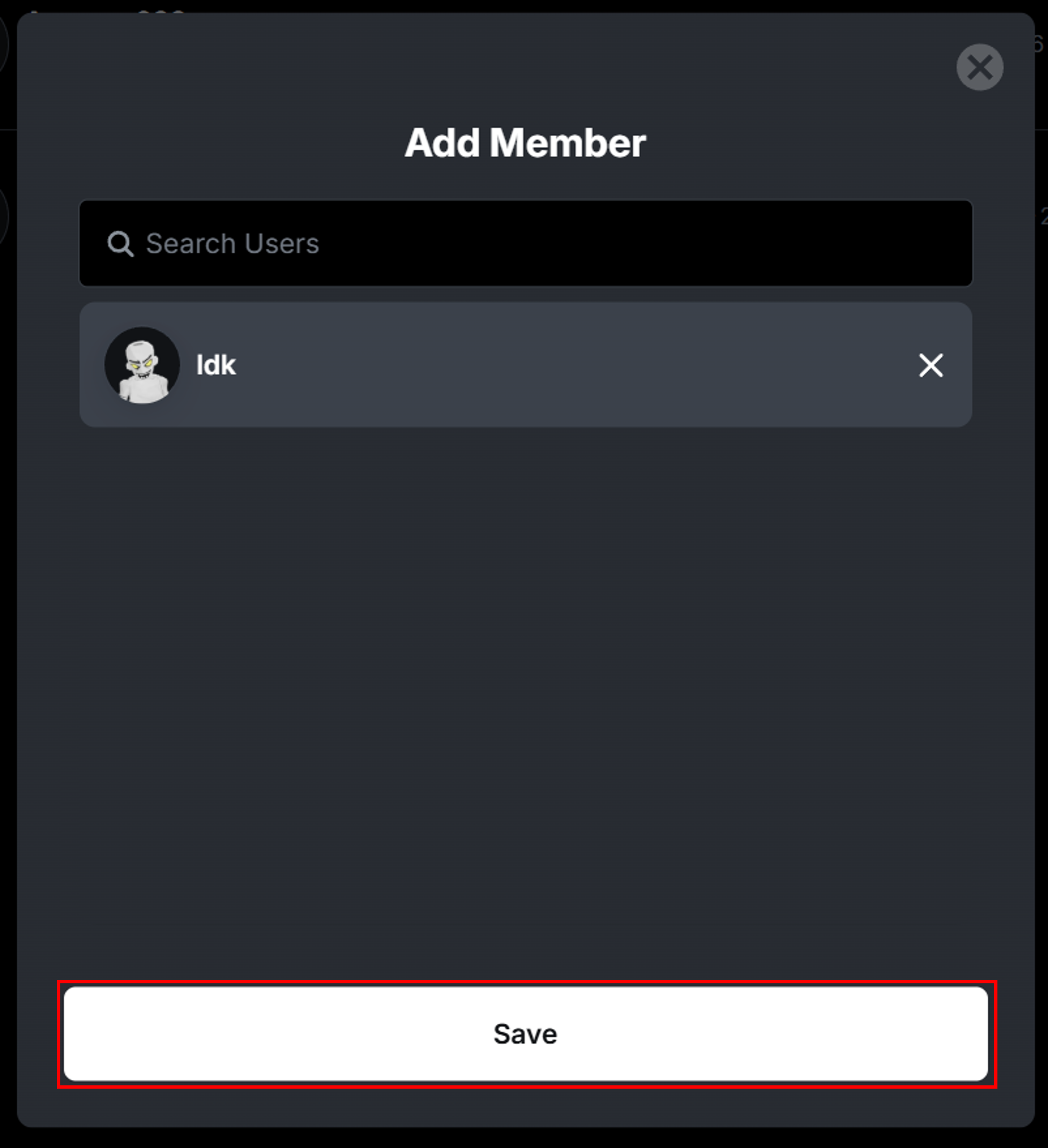
The selected creator will appear in the addition list. Click the **Save button** to add the creator to the group.

<figure><img src="https://2064130887-files.gitbook.io/~/files/v0/b/gitbook-x-prod.appspot.com/o/spaces%2FhrvYlLq1mQAq0V0vwPsb%2Fuploads%2Fgit-blob-ea5df40a1dbc36de9dd006cacece6ca3f36eba33%2Fimage.png?alt=media" alt=""><figcaption></figcaption></figure>

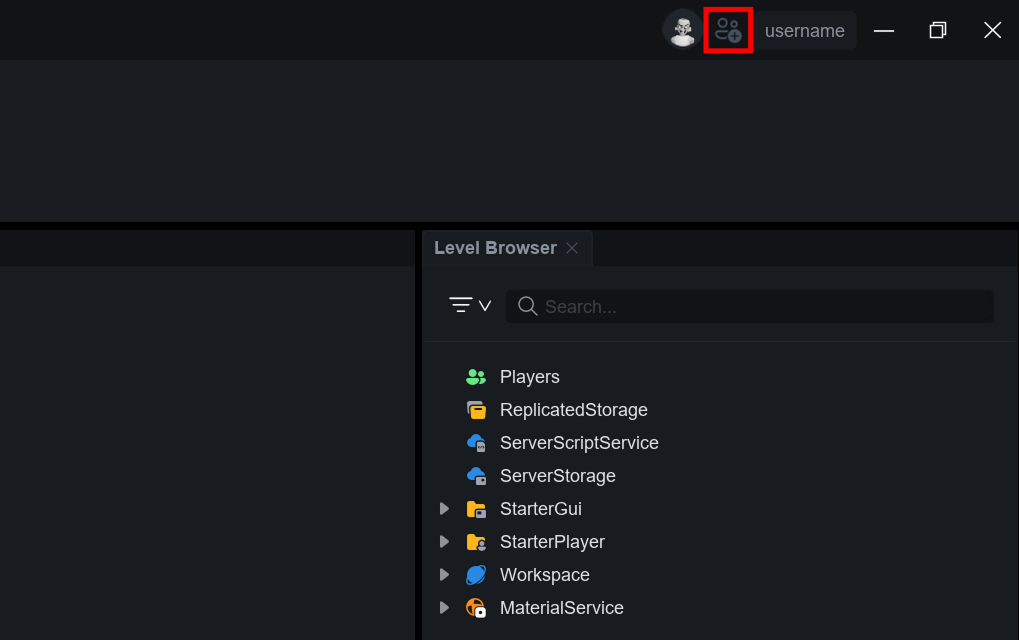
Group owners can also click the **Add a Member button** in the top-right corner of OVERDARE Studio to go to the member addition page.
<figure><img src="https://2064130887-files.gitbook.io/~/files/v0/b/gitbook-x-prod.appspot.com/o/spaces%2FhrvYlLq1mQAq0V0vwPsb%2Fuploads%2Fgit-blob-45fe9cc9455d68c421d0aa2351703867304eb39b%2Fcollaboration-1.png?alt=media" alt=""><figcaption></figcaption></figure>