> For the complete documentation index, see [llms.txt](https://docs.overdare.com/llms.txt). Markdown versions of documentation pages are available by appending `.md` to page URLs; this page is available as [Markdown](https://docs.overdare.com/manual/studio-manual/game-development/tag-editor.md).
# Tag Editor
## Overview
The Tag Editor allows you to assign tags to objects, making it easier and more efficient to manage and categorize them.
## Displaying the **Tag Editor** Panel
The Tag Editor panel can be displayed by clicking the **Tag Editor button** in the **View tab**, which appears in the top tab area of OVERDARE Studio.
## How to Use
### Adding tags
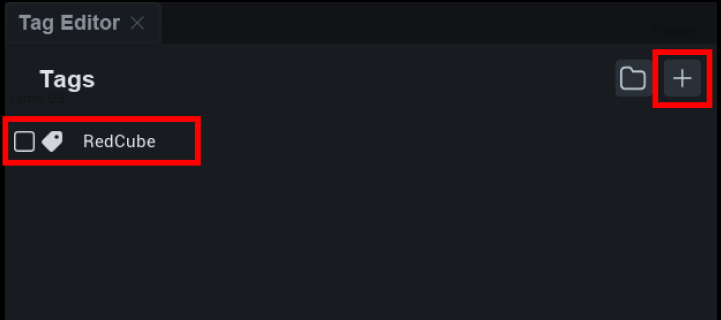
Click the **+ button** in the top-right corner of the Tag Editor to create a new tag.
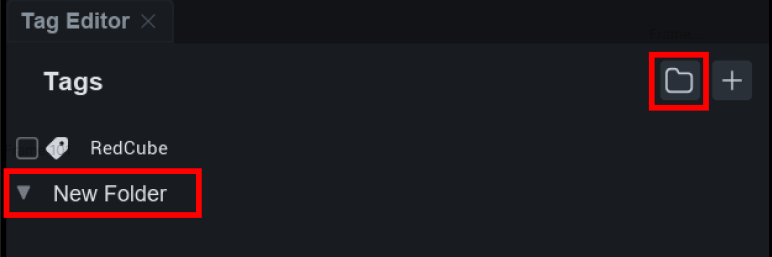
Click the **folder icon** in the top-right corner of the Tag Editor to create a new folder.
### Managing Tags
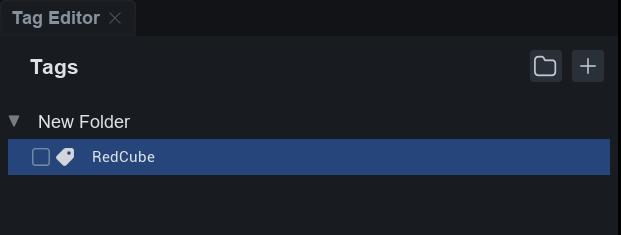
You can organize a Tag inside a folder by selecting it, then **dragging & dropping** it into a **folder**.
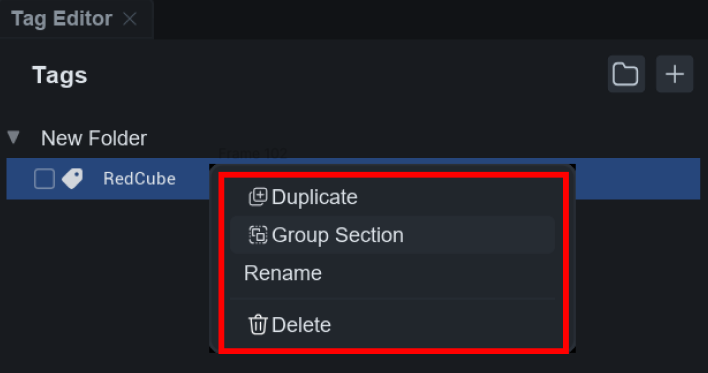
Right-click on a Tag or folder to rename it with **Rename** or delete it with **Delete**. You can also duplicate them with **Duplicate**, put them in a folder with Group Section, or remove them from a folder with Group Section.
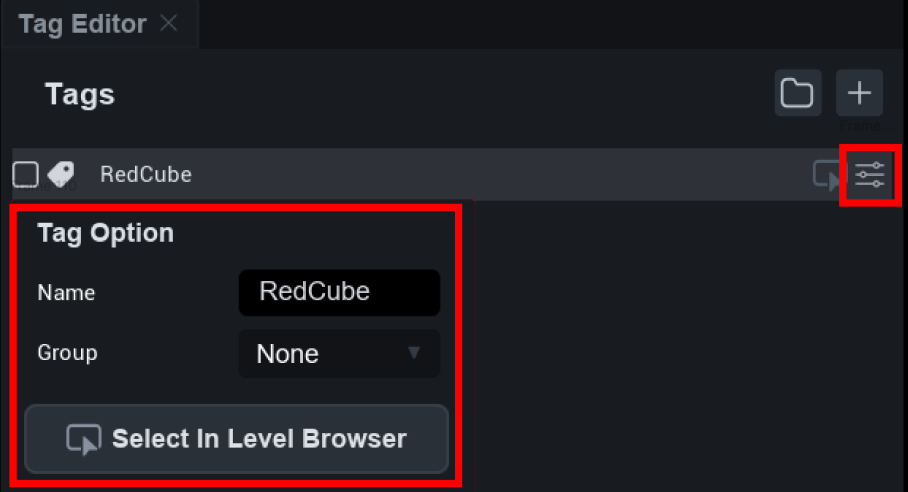
Alternatively, you can hover over a tag and click the **button** shown in the image below to display the **Tag Options window** where you can set the tag’s name or group.
In the Tag Option window, you can click the **Select In Level Browser button** to select the objects with the specified tag.
### Adding Tags to Parts
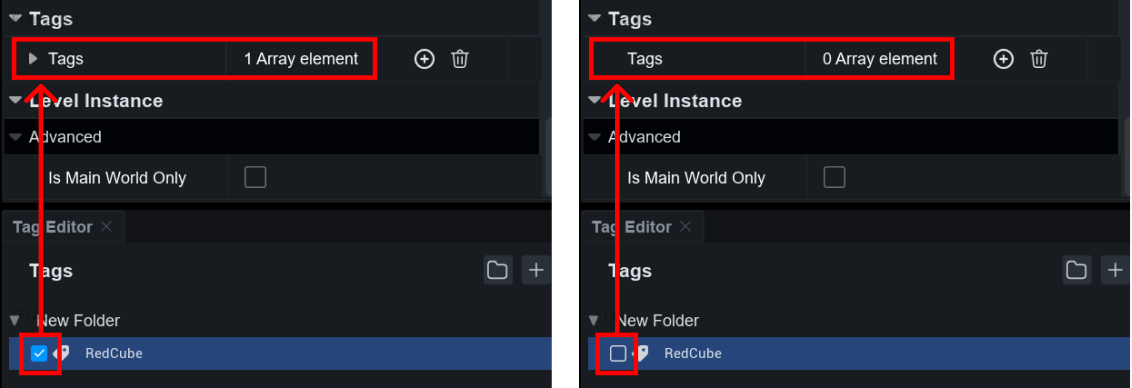
You can **assign/remove** a tag to a Part by selecting the Part you want to tag and clicking the **check box** in the Tag Editor.
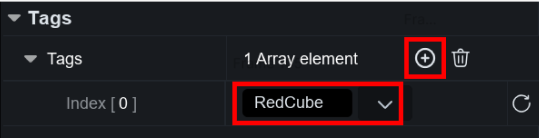
Alternatively, you can select the Part you want to tag, find Tags in the properties window, press the **+ button** to **Add**, and enter the name of the tag you want to set.\
(If the tag name does not exist in the Tag Editor, it will be automatically added and assigned.)
### Finding Objects with Tags
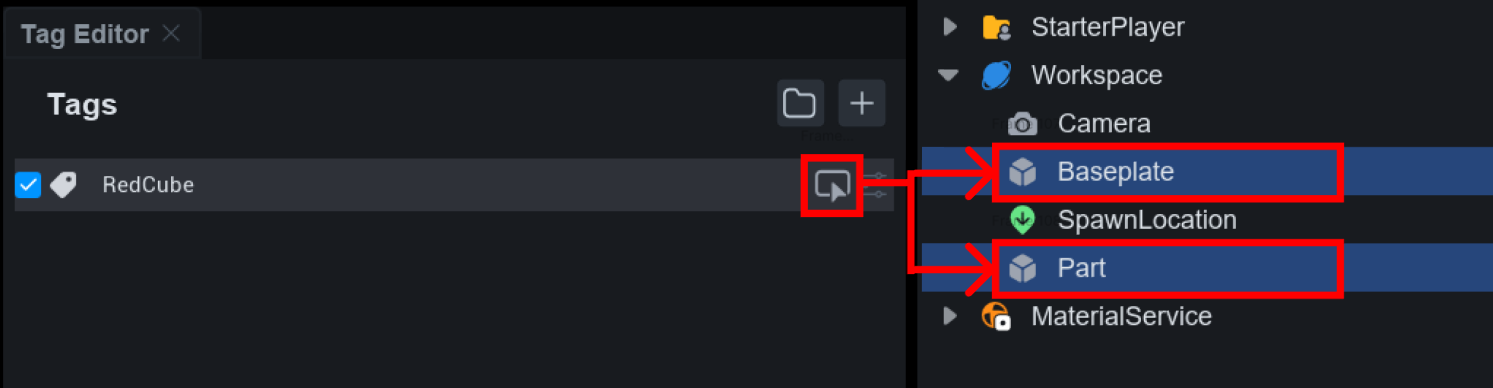
Hover over a tag and click the **button** shown in the image below to select all objects with that tag.