> For the complete documentation index, see [llms.txt](https://docs.overdare.com/llms.txt). Markdown versions of documentation pages are available by appending `.md` to page URLs; this page is available as [Markdown](https://docs.overdare.com/manual/studio-manual/game-development/preloadasset-manager.md).
# PreloadAsset Manager
## Overview
Preload Asset is a feature that preloads specific assets before the game starts. In OVERDARE, if assets are not loaded into memory at the start of the game, characters may fall through the ground. By using Preload Asset, terrain and major colliders can be preloaded before the game starts to prevent such issues.
## Recommended Use Cases
It is recommended to use it mainly for Mesh assets that must be ready at the start of the game.
* Mesh assets used in the terrain where characters spawn
* Objects that require collision processing at the start of the game
* Major structures that must be displayed immediately at the start of the game
In addition to Mesh, you can register various asset types such as Texture, Sound, and VFX. Consider registering any asset that needs to be used immediately at the start of the game, regardless of type.
## How to Use
### Open Preload Asset Manager
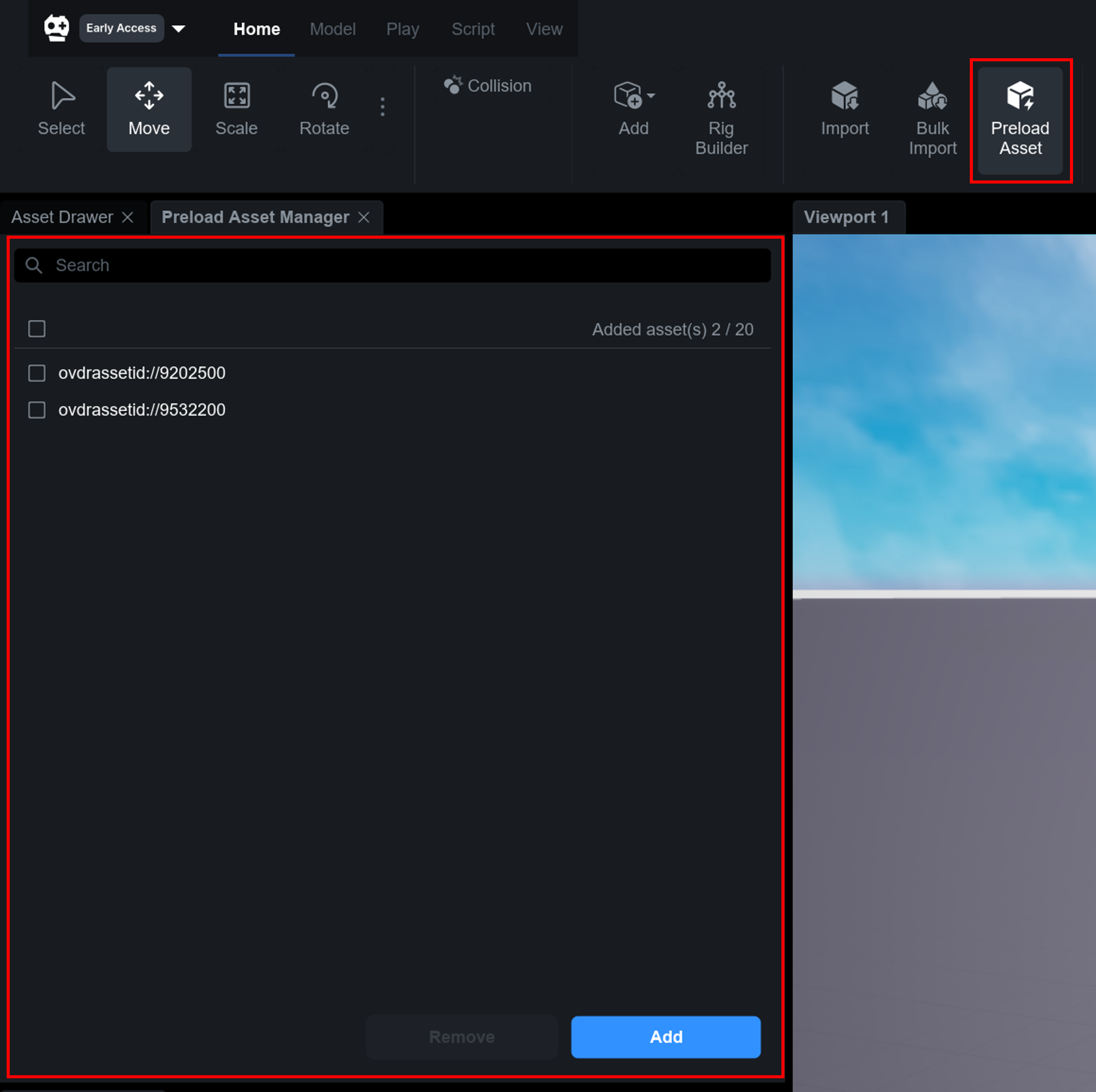
Click **Preload Asset Manager** in the top menu of the editor to open the panel. The panel can be docked and undocked from the editor, allowing you to check it frequently during work.
### Adding Assets
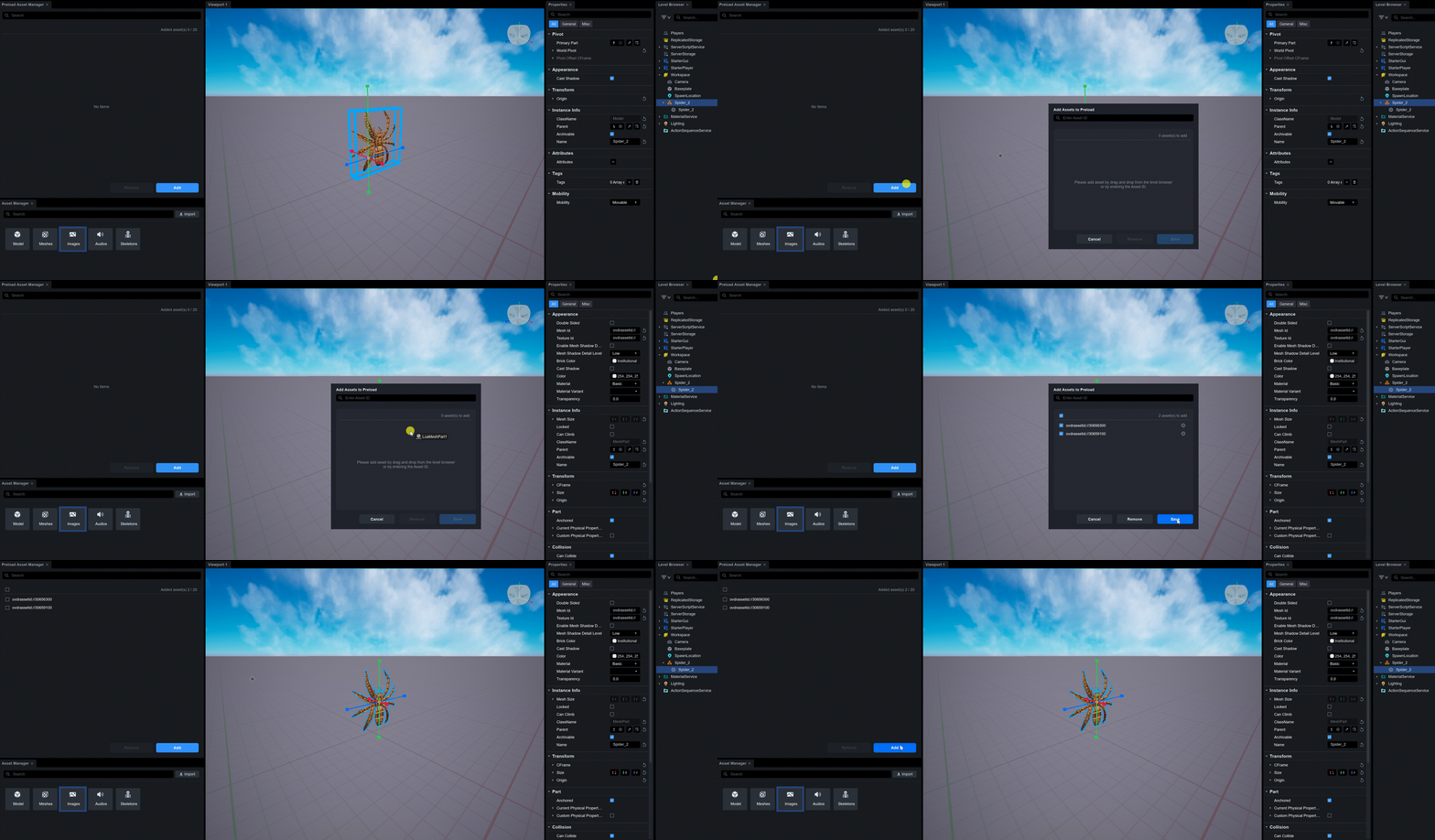
Click the **Add** button at the top of the panel to open the **Add Assets to Preload** window. There are two ways to add assets.
**Method 1. Add by Asset Id**
* Enter the Asset Id of the asset you want to add in the input field at the top and press Enter.
* Assets not in the level browser, such as those uploaded to the cloud, can also be added via Asset Id.
**Method 2. Add by Drag and Drop**
* Drag and drop the asset you want to add from the level browser to the list area.
* You can drop multiple assets at once.
Once the addition is complete, click the **Save** button to confirm the registration.
### Removing Assets
There are two ways to remove registered assets.
**Remove Individually**
* Click the **X button** on the right of each asset row to remove it immediately.
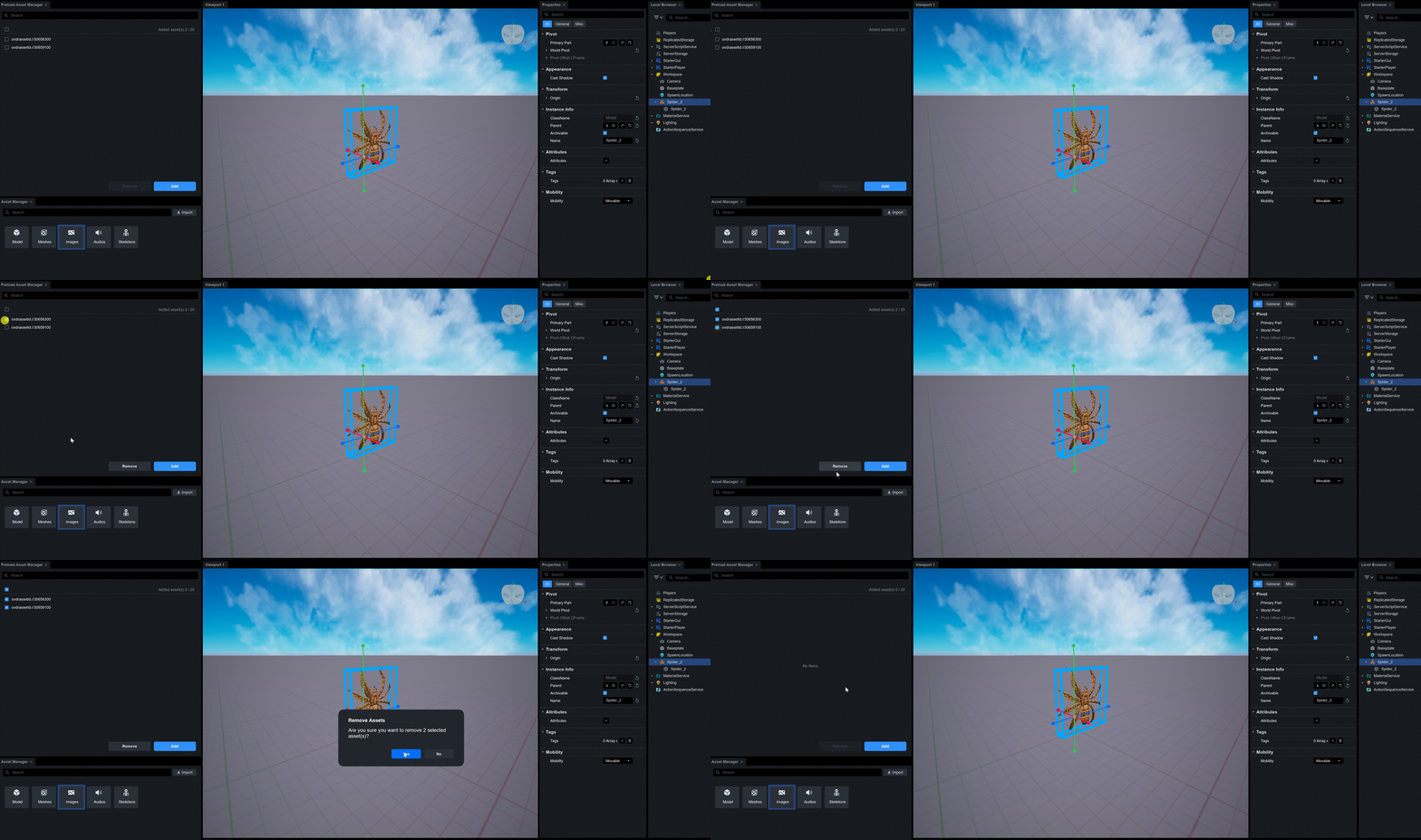
**Remove in Bulk**
* Select the checkbox of the assets you want to remove and click the **Remove** button at the bottom.
* Click **Remove** in the confirmation dialog to remove the selected assets.
> Asset removal is automatically saved immediately.
### Search Registered Assets
Enter the Asset Id in the search box at the top of the panel to filter registered assets in real-time.
## Caution
* You can register up to **20** Preload Assets. The more assets registered, the longer the game entry time.
* If the number of registrable assets is exceeded, the Add button will be disabled.
* A warning message will be displayed if an invalid Asset Id is entered or if an invalid asset is dropped.
* It is recommended to register only essential assets.