> For the complete documentation index, see [llms.txt](https://docs.overdare.com/llms.txt). Markdown versions of documentation pages are available by appending `.md` to page URLs; this page is available as [Markdown](https://docs.overdare.com/manual/studio-manual/game-development/material-manager.md).
# Material Manager
## Overview
Using the Material Manager, you can manage various materials and apply them to objects to enhance visual quality.
## Displaying the Material Manager Panel
The Material Manager panel can be displayed by clicking the **Material Manager button** in the **Model tab**, which appears in the top tab area of OVERDARE Studio.
## How to Use
### Adding a MaterialVariant
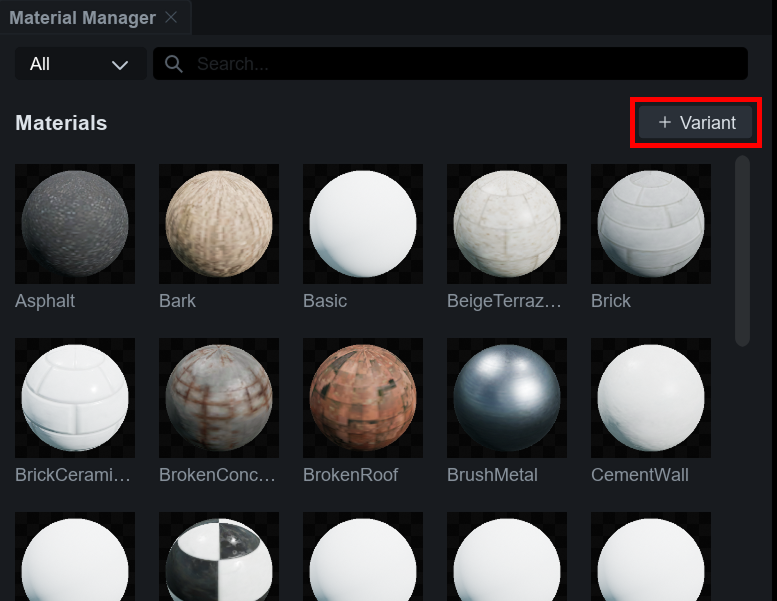
You can create a MaterialVariant by clicking the **+ Variant button** in the top-right corner of the Material Manager panel.
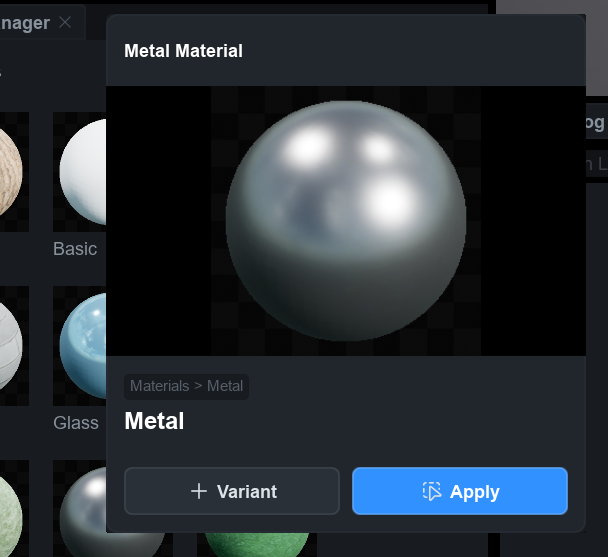
Alternatively, you can **click on a Material** to open the Material Panel, then click the **+ Variant button** to create a MaterialVariant.
### Editing a MaterialVariant
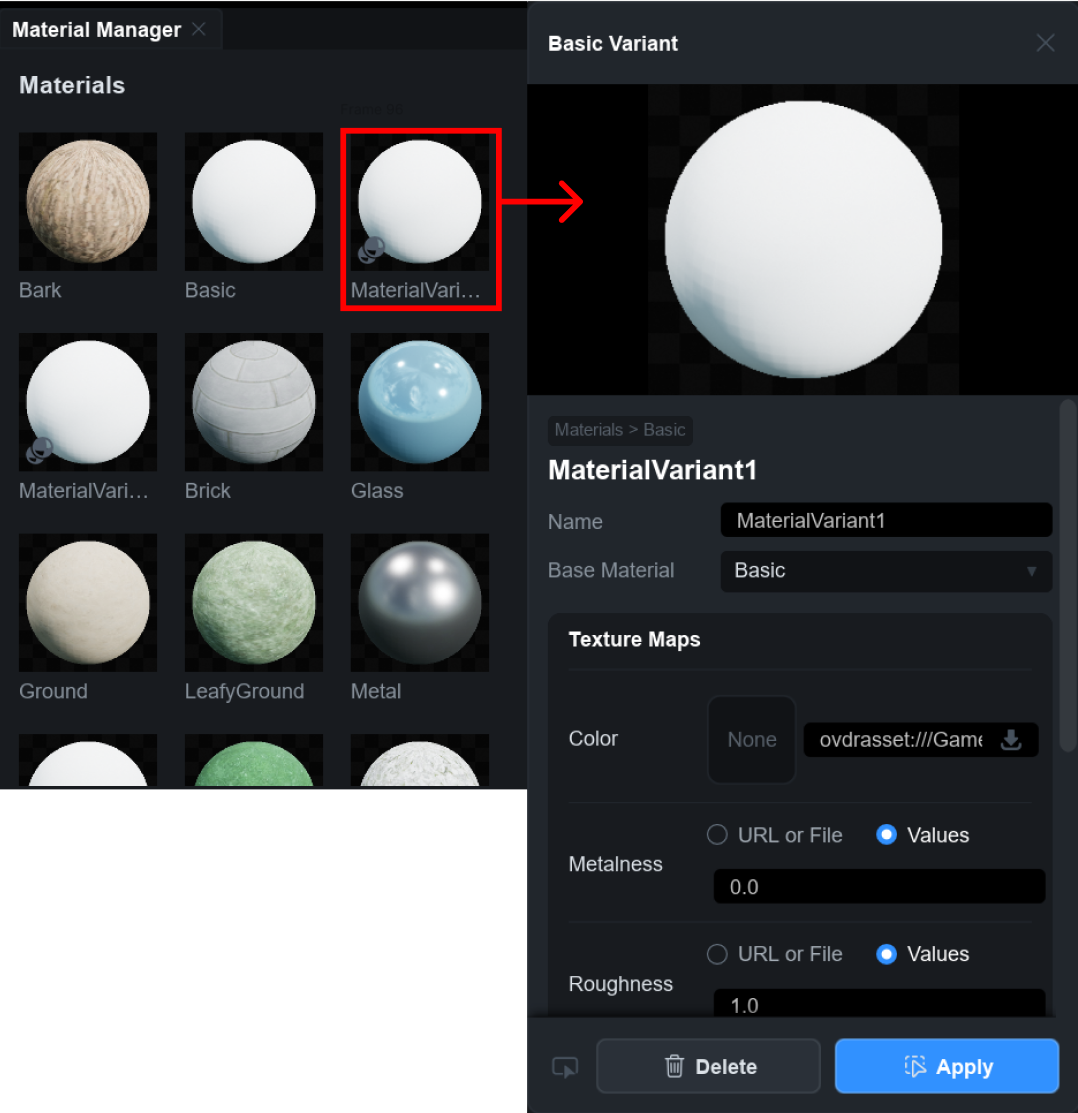
Click on a created MaterialVariant to display its panel, where you can modify its properties or delete the variant.
### Material Variant Properties
| Category | Description |
| ------------- | ----------------------------------------------------------------------------------------------------------------------------------------------- |
| Name | Allows you to rename the MaterialVariant. |
| Base Material |
Specifies the Base Material that the MaterialVariant references.
You can choose from Basic, Plastic, Brick, Rock, Metal, or Unlit.
|
#### **Texture Maps**
Category
Description
Notes
Color
Changes the material's color.
-
Metalness
Defines the metallic appearance of the model's surface.
You can import a file or adjust the value. *Value range: 0.0 ~ 1.0
Normal
Provides surface height details to create a more complex texture.
You can import a file or adjust the value. *Value range: 0.0 ~ 1.0
Roughness
Defines the roughness of the model's surface.
You can import a file or adjust the value. *Value range: 0.0 ~ 1.0
#### **Tiling**
Category
Description
Default
Unit Per Tile
Defines how many Studs the material's tile texture repeats over.
Default is 1.
#### **Physics**
Category
Description
Value Range
Density
Adjusts the density of the MaterialVariant.
0.01~100
Friction
Adjusts the friction of the MaterialVariant.
0~2.0
Elasticity
Adjusts the elasticity of the MaterialVariant.
0~1.0
### Applying a Material to a Part
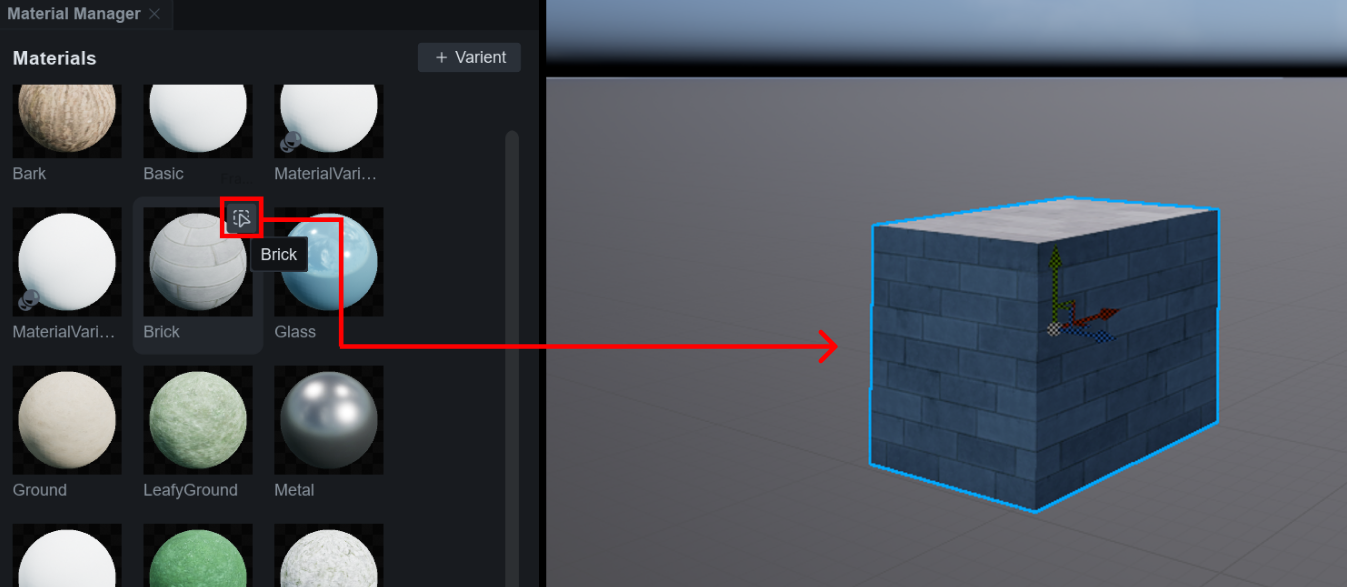
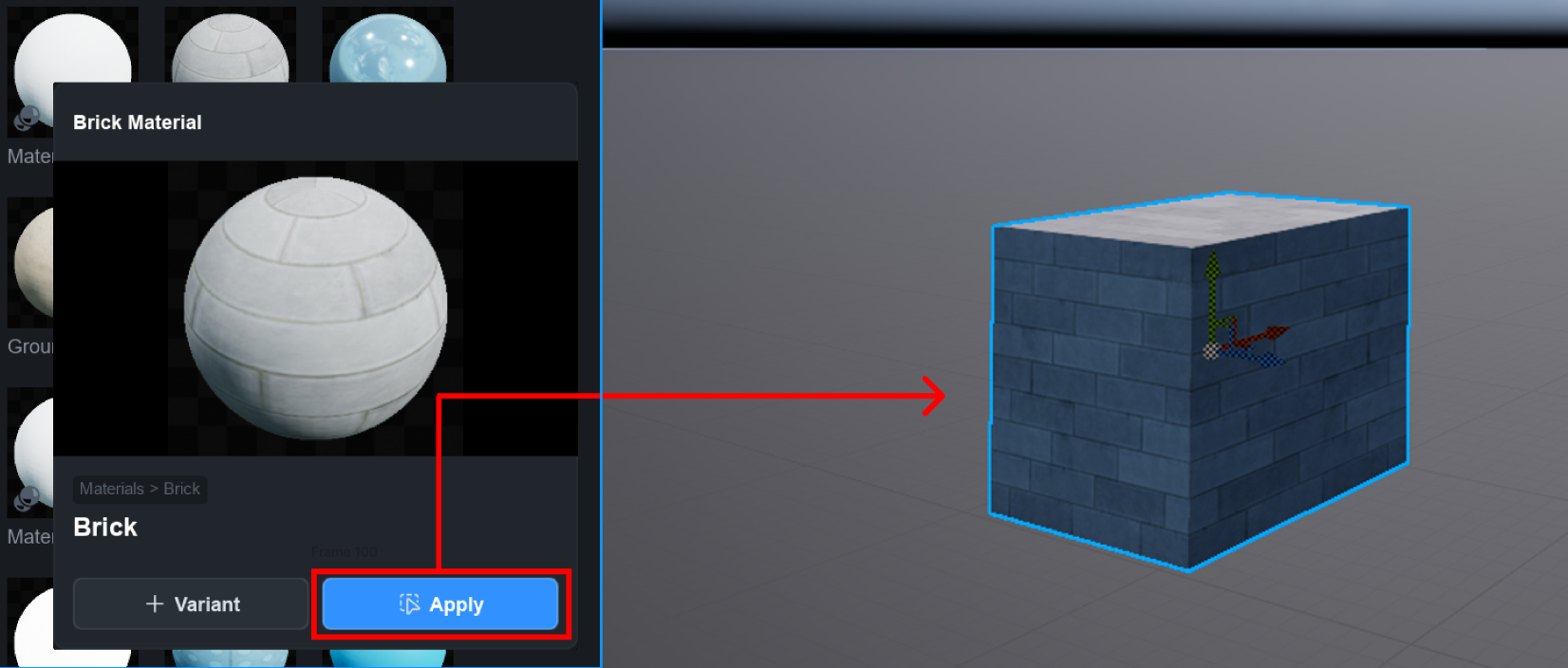
To apply a Material or MaterialVariant to a Part, select the Part, hover over the Material or MaterialVariant, and click the **button** shown in the image below.
Alternatively, select the Part you want to apply the Material or MaterialVariant to, click the Material or MaterialVariant, and then click the **Apply button** in the displayed panel.
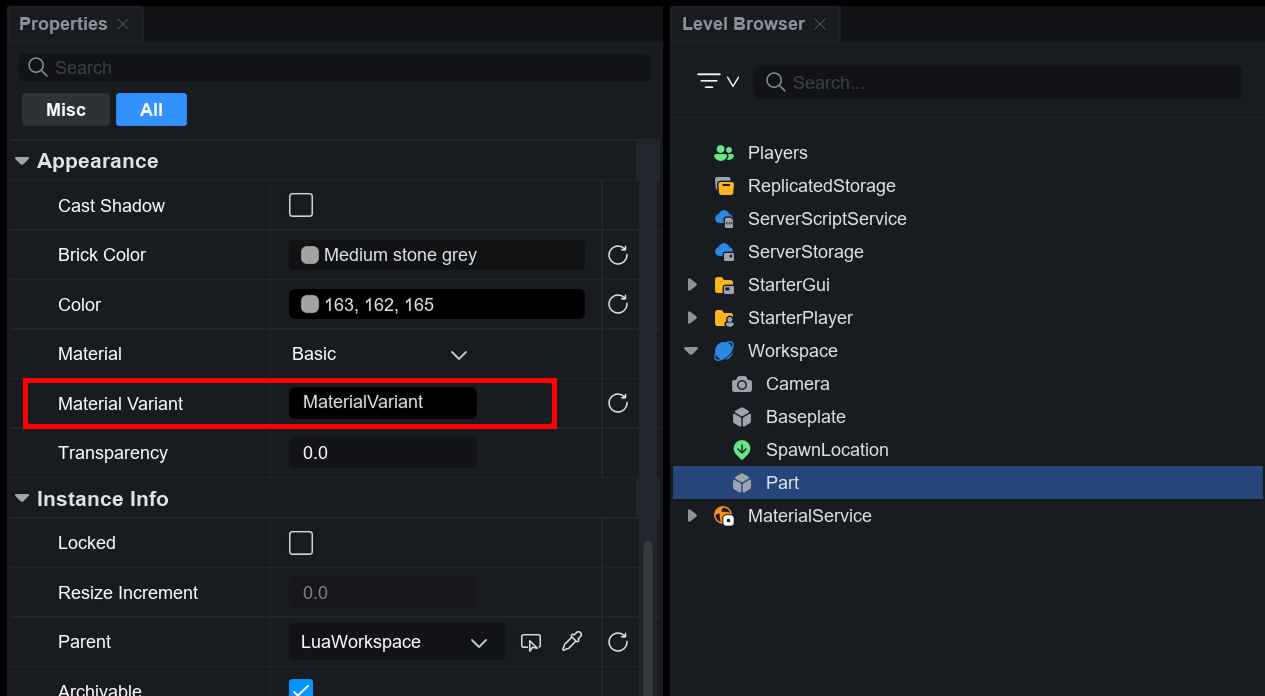
You can also apply a MaterialVariant by directly entering its name in the properties window.