> For the complete documentation index, see [llms.txt](https://docs.overdare.com/llms.txt). Markdown versions of documentation pages are available by appending `.md` to page URLs; this page is available as [Markdown](https://docs.overdare.com/manual/studio-manual/asset-and-resource-creation/using-mixamo-to-create-studio-animations.md).
# Using Mixamo to Create Studio Animations
## Overview
**Mixamo** is a **web-based 3D character rigging and animation platform** operated by Adobe.
With only a 3D character model, it can automatically generate a skeleton and animate the character in just a few minutes, eliminating what is traditionally a complex and time-consuming workflow. As a result, Mixamo is widely used for game development, metaverse UGC, and 3D animation projects, significantly accelerating the prototyping process. It is currently available **free of charge** with an Adobe account.
## Key Features
### 1. Auto-Rigger
The Auto-Rigger is Mixamo's most powerful feature. Traditionally, rigging a 3D character—creating a skeleton and painting skin weights—requires specialized knowledge and considerable effort.
* Upload a 3D character model in a T-pose (or A-pose) without an existing skeleton (such as an FBX or OBJ file).
* Place guide markers on key joints, including the chin, wrists, elbows, knees, and pelvis.
* Mixamo analyzes the character's geometry, automatically generates a complete bone hierarchy, and applies accurate skin weighting to produce a fully rigged character.
### 2. Extensive Animation Library
Mixamo provides thousands of high-quality motion capture (mocap) animations.
* **Wide variety of categories:** Choose from a broad selection of animations, including basic locomotion (walking, running, and jumping), combat (such as boxing and taekwondo), dance, idle poses, adventure, thriller-style motions, and more.
* **Real-time customization:** Adjust animation properties directly in the browser using intuitive sliders. Parameters such as animation speed, arm spacing, stride length, and motion intensity can be modified in real time to better match your character.
### 3. Flexible Export Options
Completed characters and animations can be exported in widely supported 3D formats, including FBX, OBJ, and Collada (DAE).
* Assets are fully compatible with major game engines such as Unreal Engine and Unity, as well as popular 3D DCC applications including 3ds Max, Blender, and Maya.
* Depending on your workflow, you can export either the character mesh with its skin (With Skin) or only the animation data (Without Skin) for retargeting onto another character.
## Using Mixamo in OVERDARE Studio
{% file src="/files/xTYgE33NXErAnkV0jWSF" %}
1. Go to [mixamo.com](http://mixamo.com/) and sign in with your Adobe account. ([If you do not have an Adobe account, create one first.](https://auth.services.adobe.com/en_US/deeplink.html?deeplink=signup\&callback=https%3A%2F%2Fims-na1.adobelogin.com%2Fims%2Fadobeid%2Fmixamo1%2FAdobeID%2Fcode%3Fredirect_uri%3Dhttps%253A%252F%252Fwww.mixamo.com%252F%2523%252Fimsauth%26code_challenge_method%3Dplain%26use_ms_for_expiry%3Dtrue\&client_id=mixamo1\&scope=openid%2CAdobeID\&relay=d1564e2f-d492-4076-9827-37e6a8c0e320\&locale=en_US\&flow_type=code\&idp_flow_type=create_account\&el=true\&ab_test=mfa-enroll-C%2Cmfa-promo-C%7Cmfa-enroll-C%2Cmfa-promo-C%7Cmfa-enroll-C%2Cmfa-promo-C%7Cmfa-enroll-C%2Cmfa-promo-C%7Cmfa-enroll-C%2Cmfa-promo-C%7Cmfa-enroll-C%2Cmfa-promo-C%7Cmfa-enroll-C%2Cmfa-promo-C%7Cmfa-enroll-ref%2Cmfa-promo-ref\&s_p=google%2Ckakao%2Capple%2Cmicrosoft%2Cfacebook%2Cline\&response_type=code\&code_challenge_method=plain\&redirect_uri=https%3A%2F%2Fwww.mixamo.com%2F%23%2Fimsauth\&use_ms_for_expiry=true#/signup))
2. Drag and drop the Mixamo\_For\_OVDR.fbx file into the **UPLOAD CHARACTER** section.
3. Once the OVERDARE character appears, click **Next**.
4. After the character has been loaded, select the animation you want to preview. The selected animation will play automatically. When you find the animation you want, click **Download**.
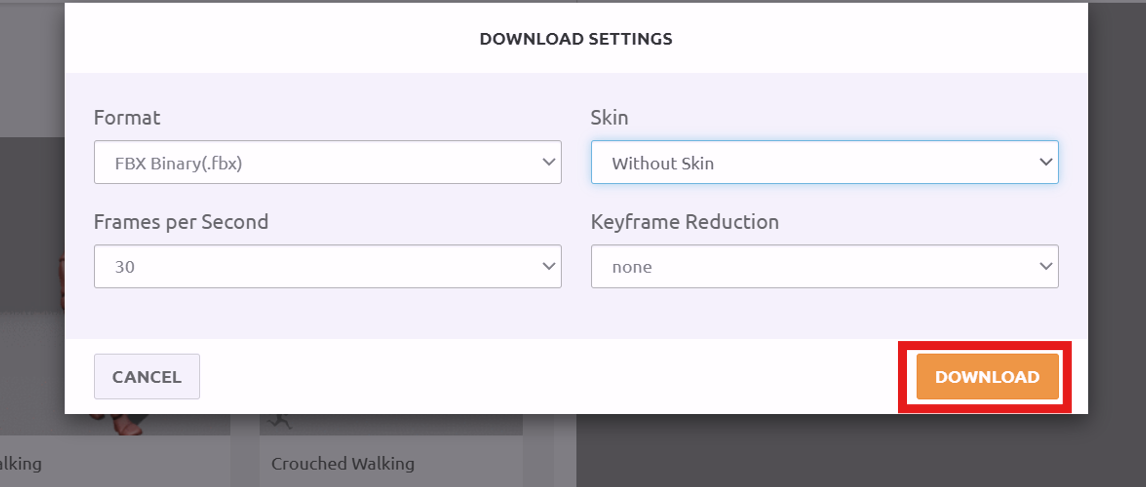
5. Configure the export settings as shown below, then click **Download**.
6. **Import the downloaded file into OVERDARE Studio**, and it is ready to use.
Related Documentation
{% content-ref url="/pages/bS79pIBVkO3rjcUR9Zhi" %}
[Asset Import](/manual/studio-manual/asset-and-resource-creation/asset-import.md)
{% endcontent-ref %}
{% content-ref url="/pages/YK5NZVV1FAIHbrQSOuHF" %}
[Character Animation](/manual/studio-manual/character/character-animation.md)
{% endcontent-ref %}